
Installation Guide


IPTV Setup Tutorials for All Devices

Get your TVFlexLine IPTV subscription up and running in minutes. Follow our step-by-step installation guides for
every device β€” no technical experience required.


πŸ“‘

Select Your Device Above

Choose your streaming device from the menu to see the full installation guide tailored for it.

πŸ”₯ Fire TV Stick Setup Guide

⏱️ 5–10 minutes
πŸ“± V12Mate Player (Free)
βœ… Beginner Friendly

V12Mate (Our Free App)
No Server Address Needed
Very Important: If you already have TiviMate installed, please uninstall
it first β€” otherwise V12Mate will not install correctly.

Choose Your Learning Style

πŸŽ₯

Video Tutorial

Watch a complete walkthrough guide

⏱️ ~3 min video
πŸ“

Step-by-Step Guide

Follow detailed written instructions with screenshots

⏱️ Read at your pace
Complete Video Installation Guide


Part 1 β€” Install the Downloader App

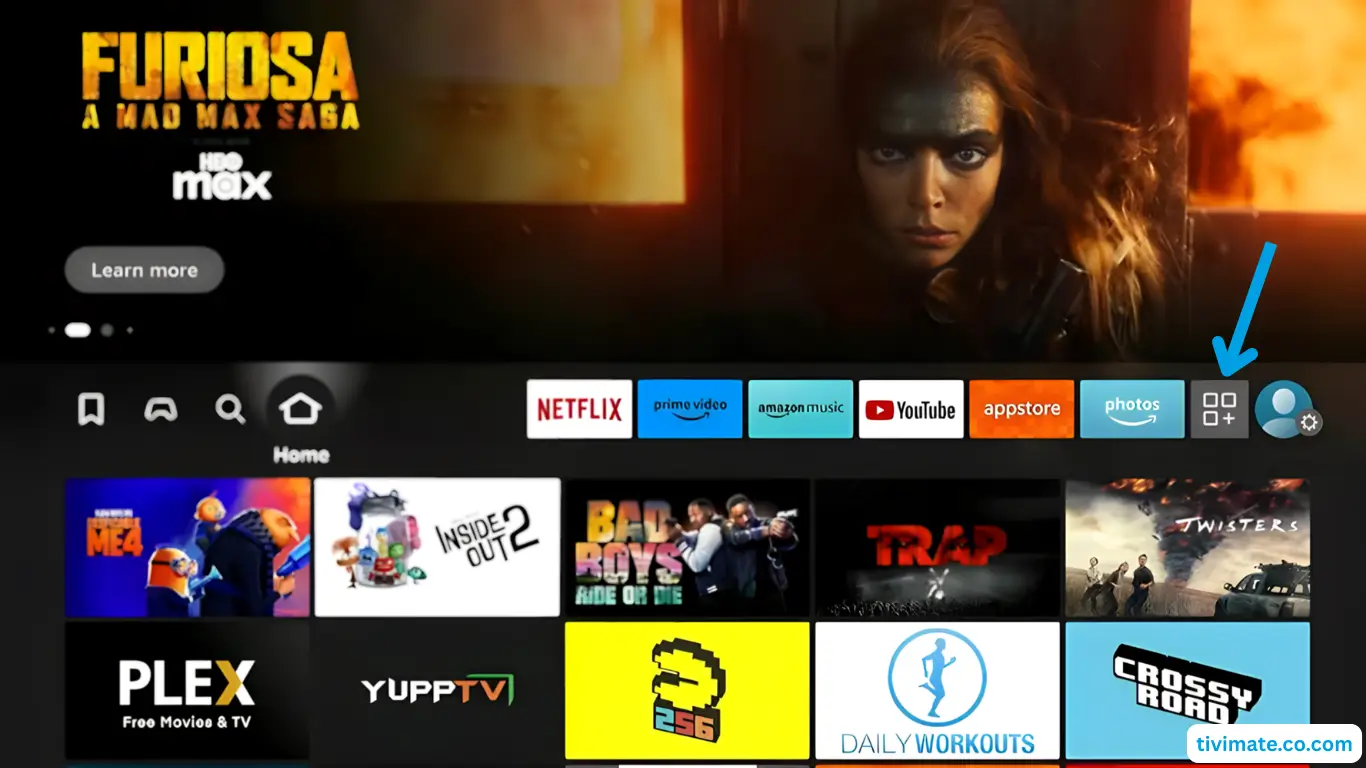
  1. From the Fire TV home screen, go to My Apps
    Go to My Apps on Fire TV home screen
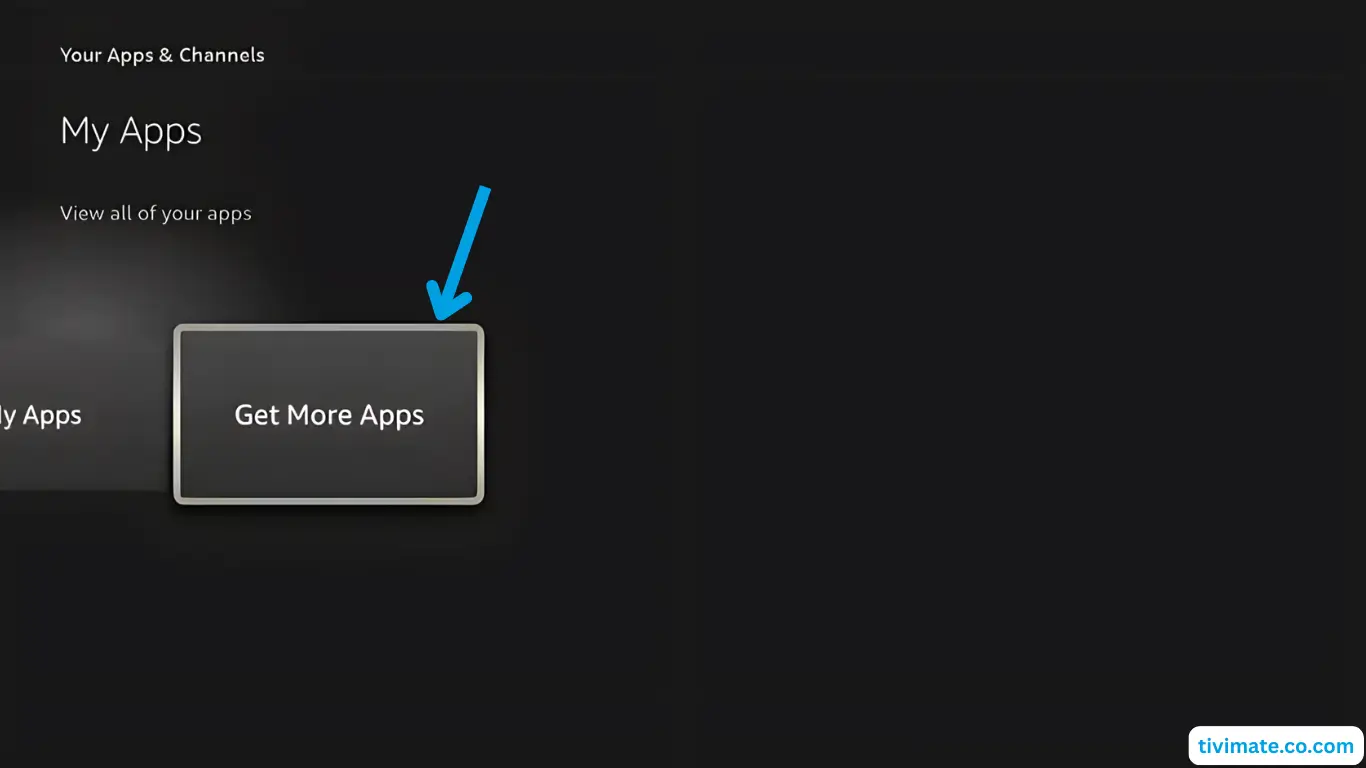
  2. Select Get more apps
    Select get more apps
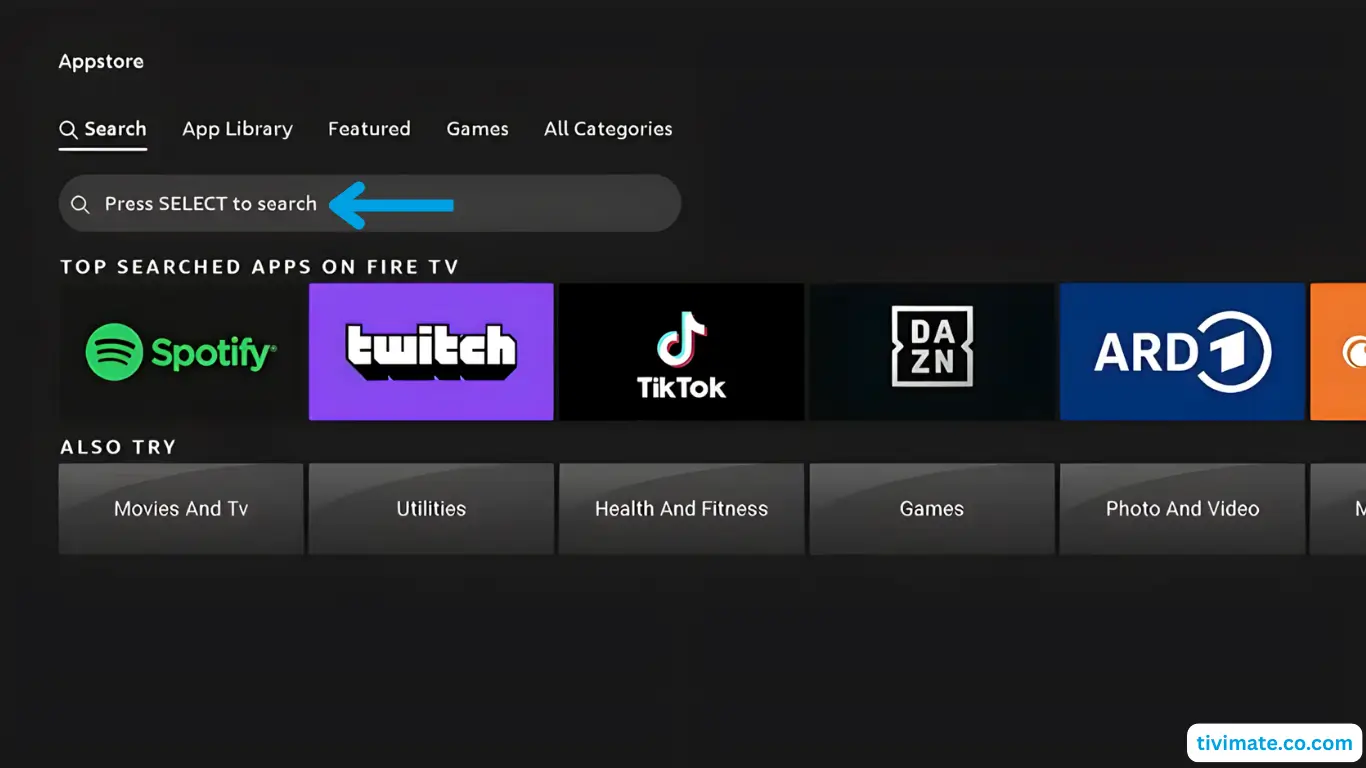
  3. Choose Search, press Down then
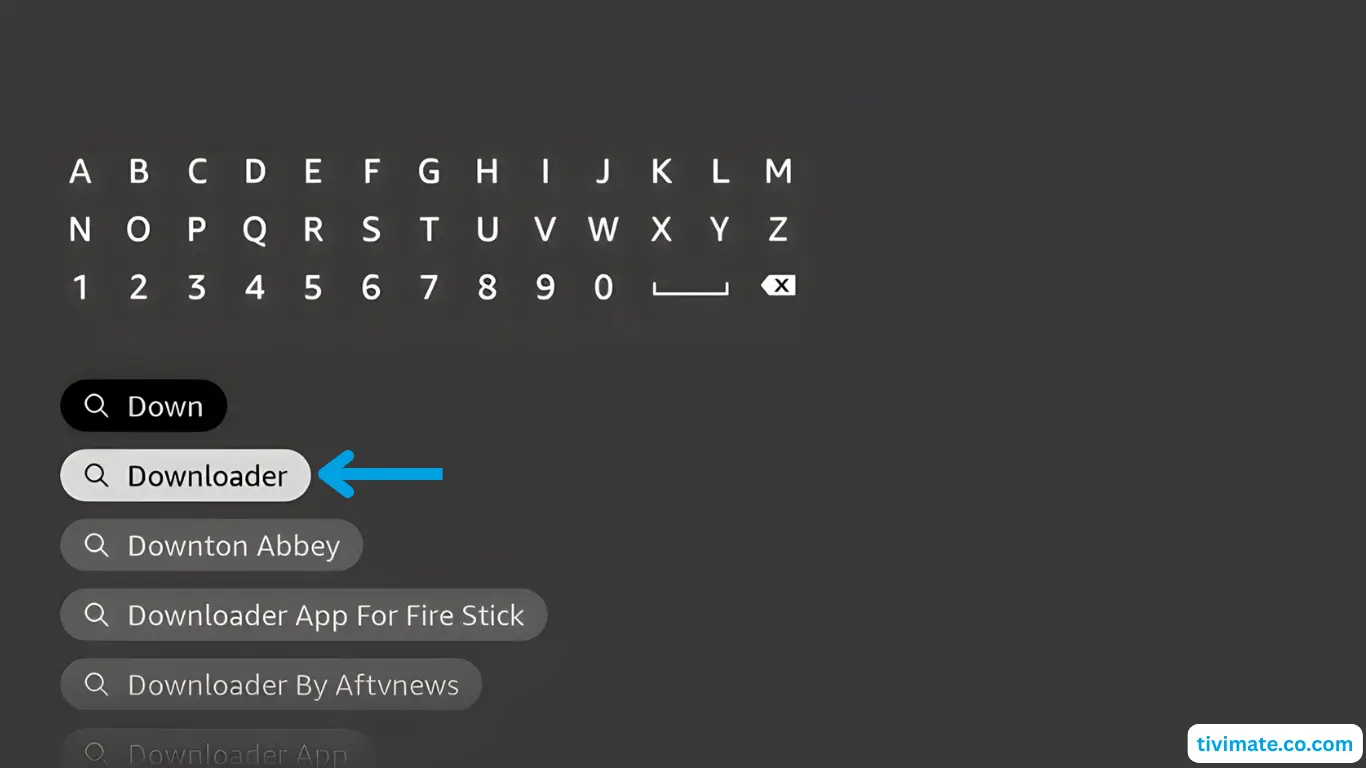
    OK, and type Downloader
    Search for Downloader app on Fire TV
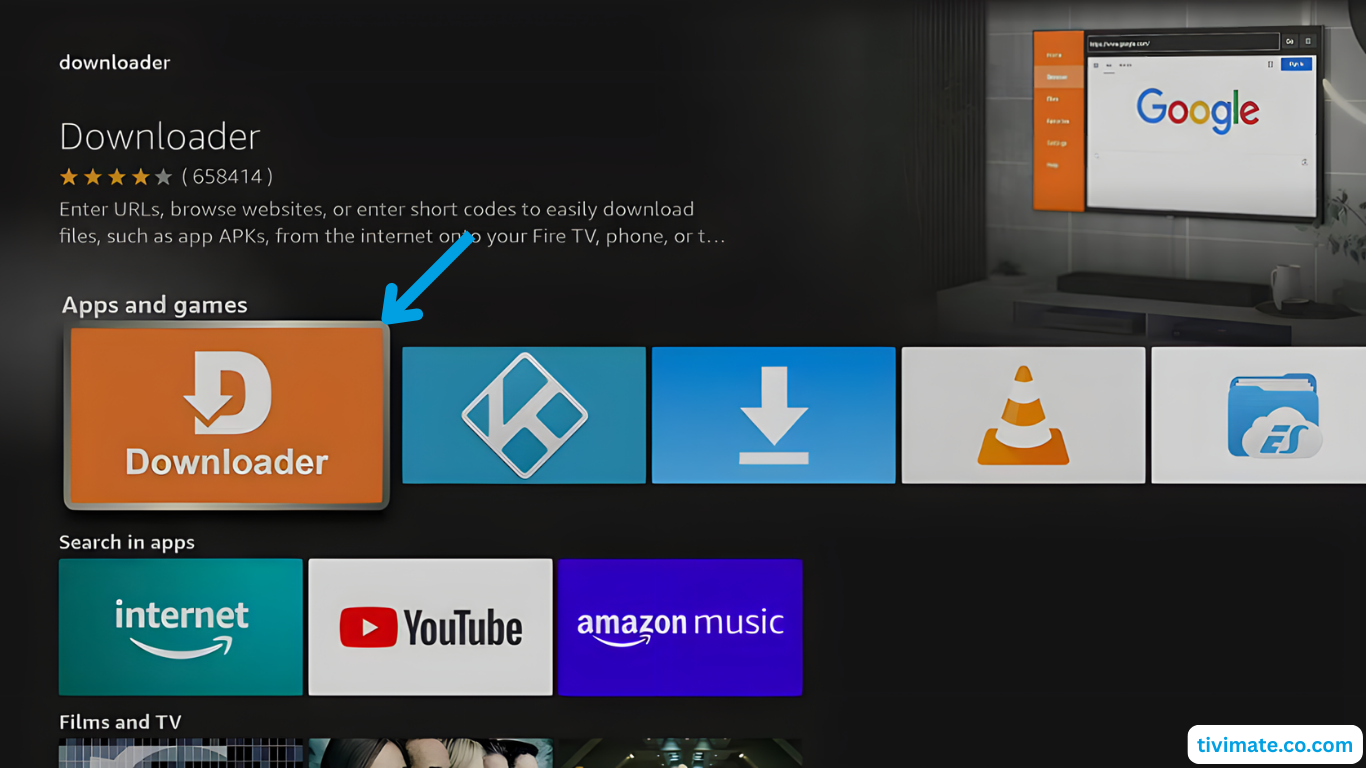
  4. When results appear, select Downloader and press
    OK
    Downloader app shown in search results
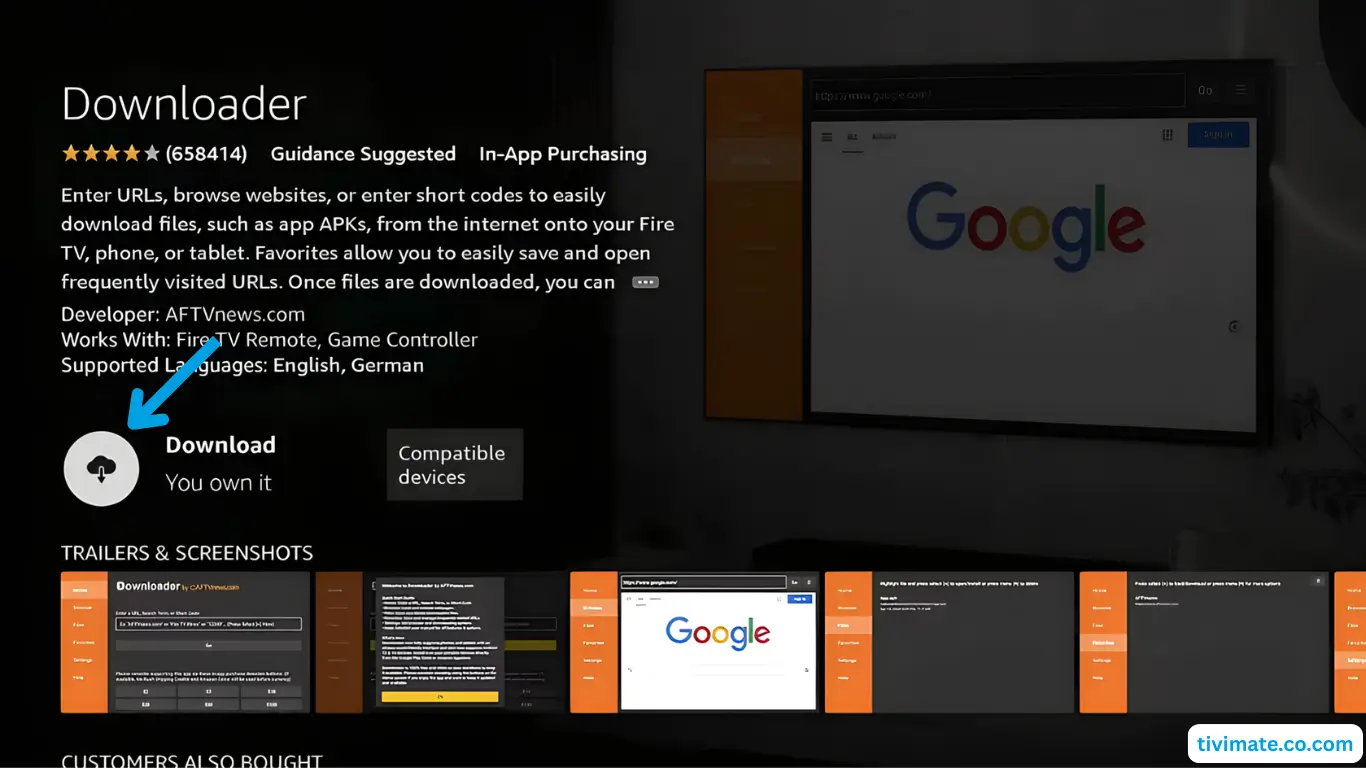
  5. Select Downloader β†’ tap Download and
    wait for installation to complete
    Select Downloader app
    Click Download button
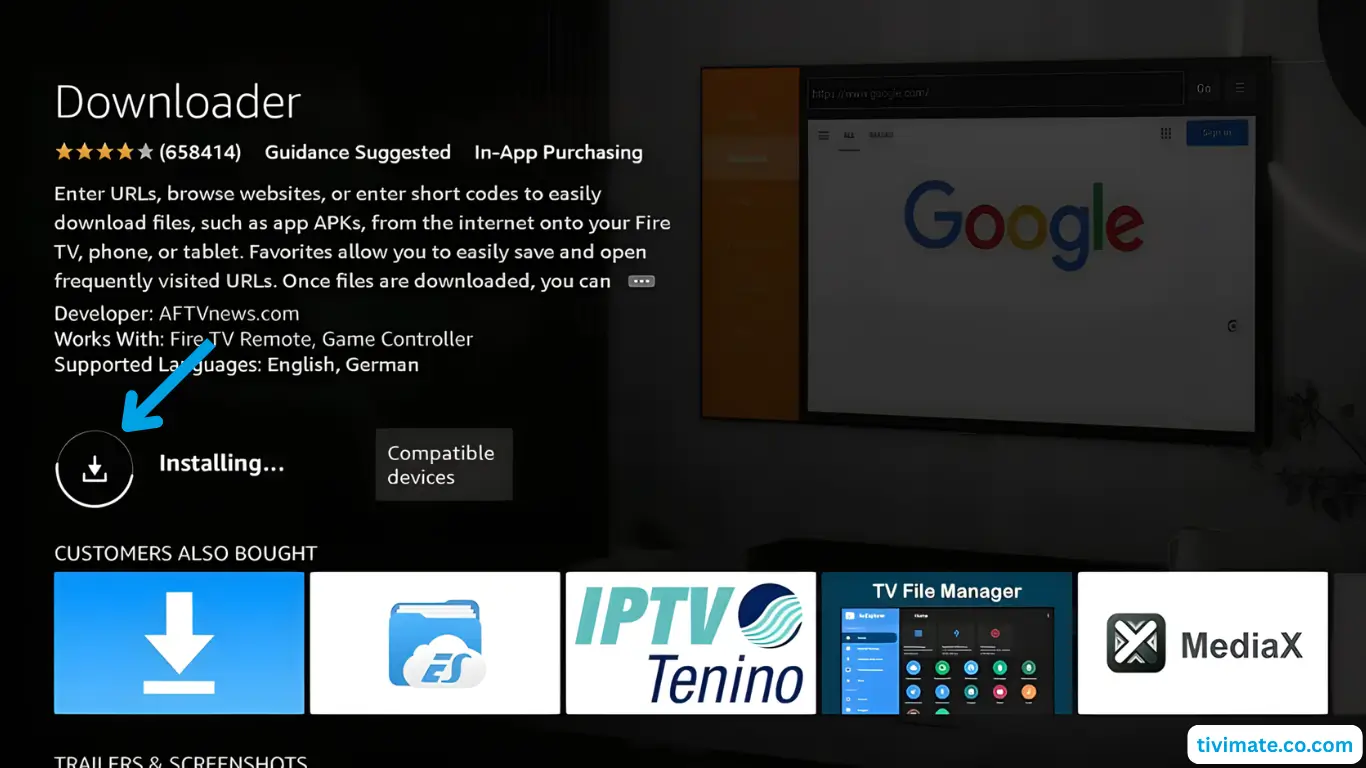
  6. Wait for Downloader to finish downloading and installing
    Downloader being installed on Fire TV
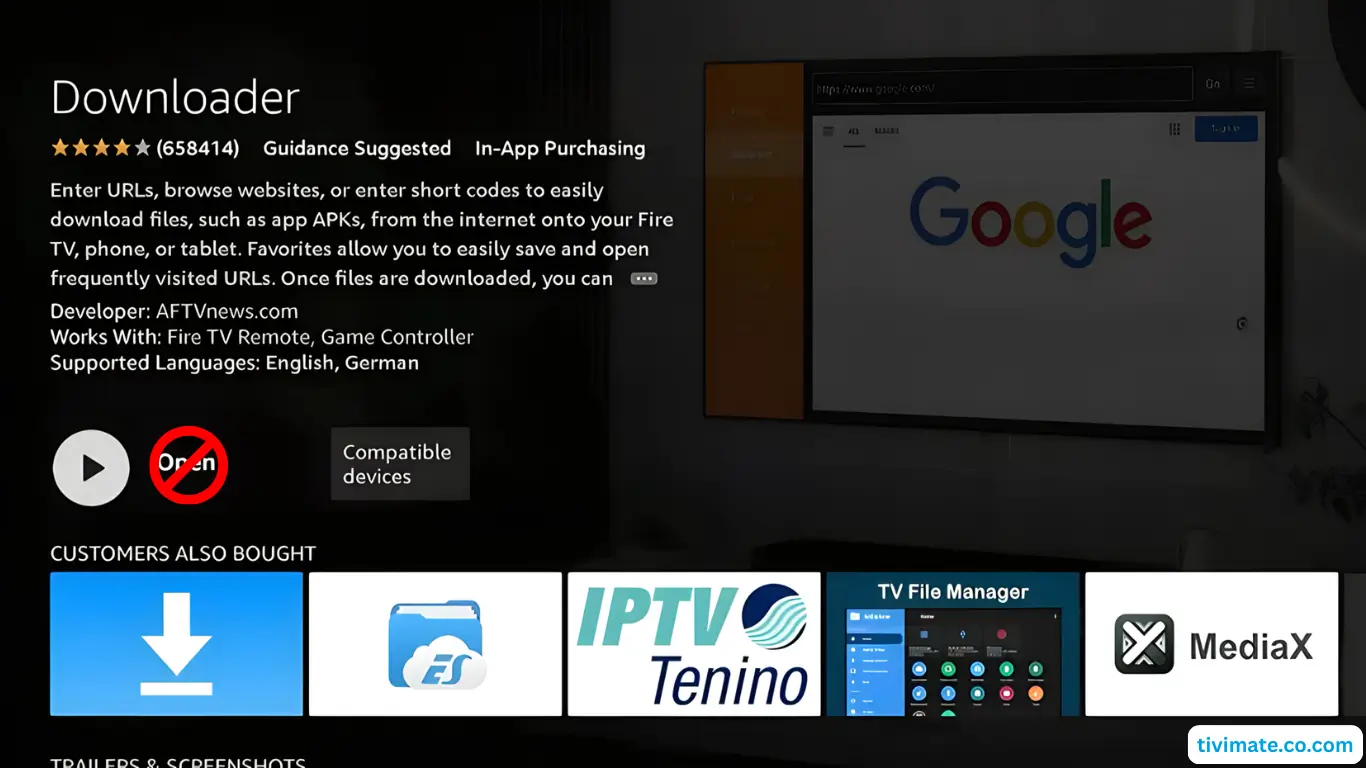
  7. Do not open it yet. Press Back to return to the
    home screen
    Do not open the app yet

Part 2 β€” Enable Developer Options & Unknown Sources

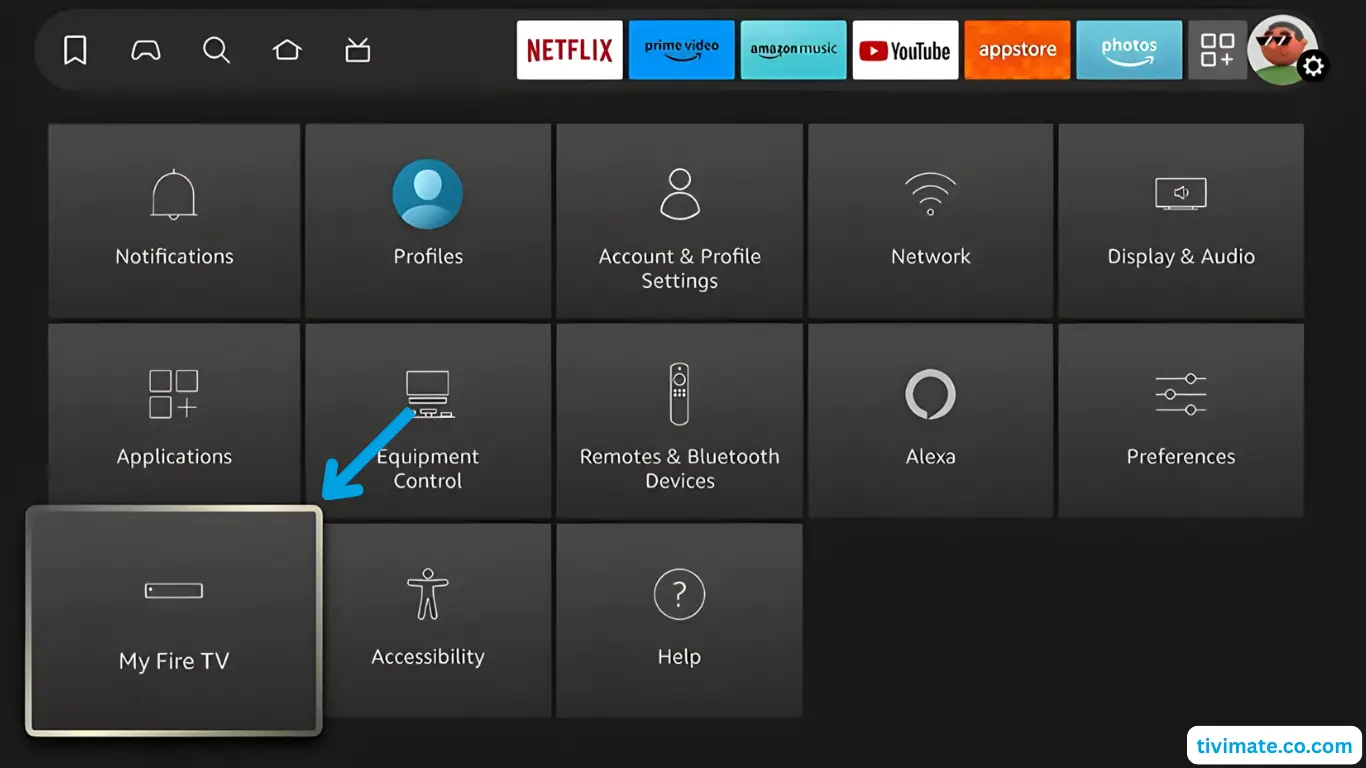
  1. Go to Settings β†’ My Fire TV
    Click on My Fire TV in settings
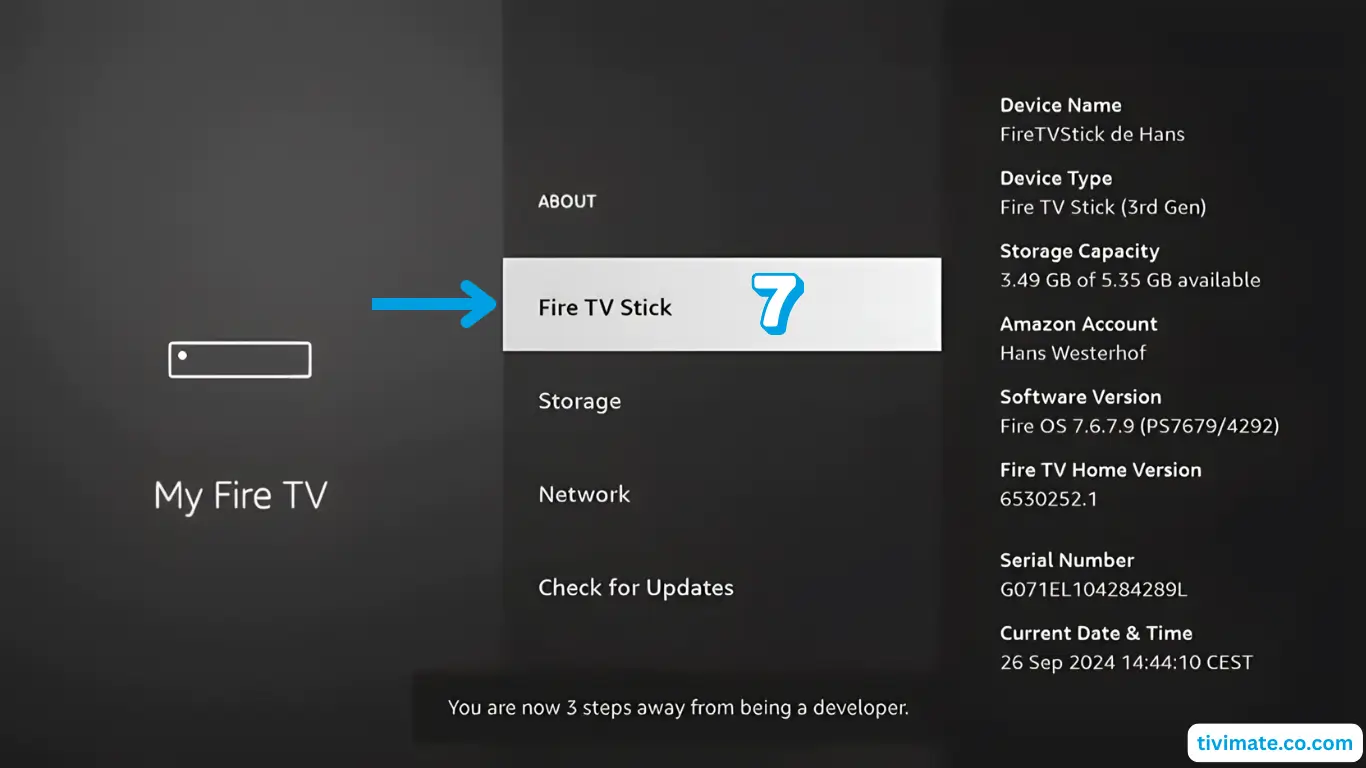
  2. Open About and click Fire TV Stick
    exactly 7 times to unlock Developer Options
    Click About and then Fire TV Stick 7 times to enable developer options
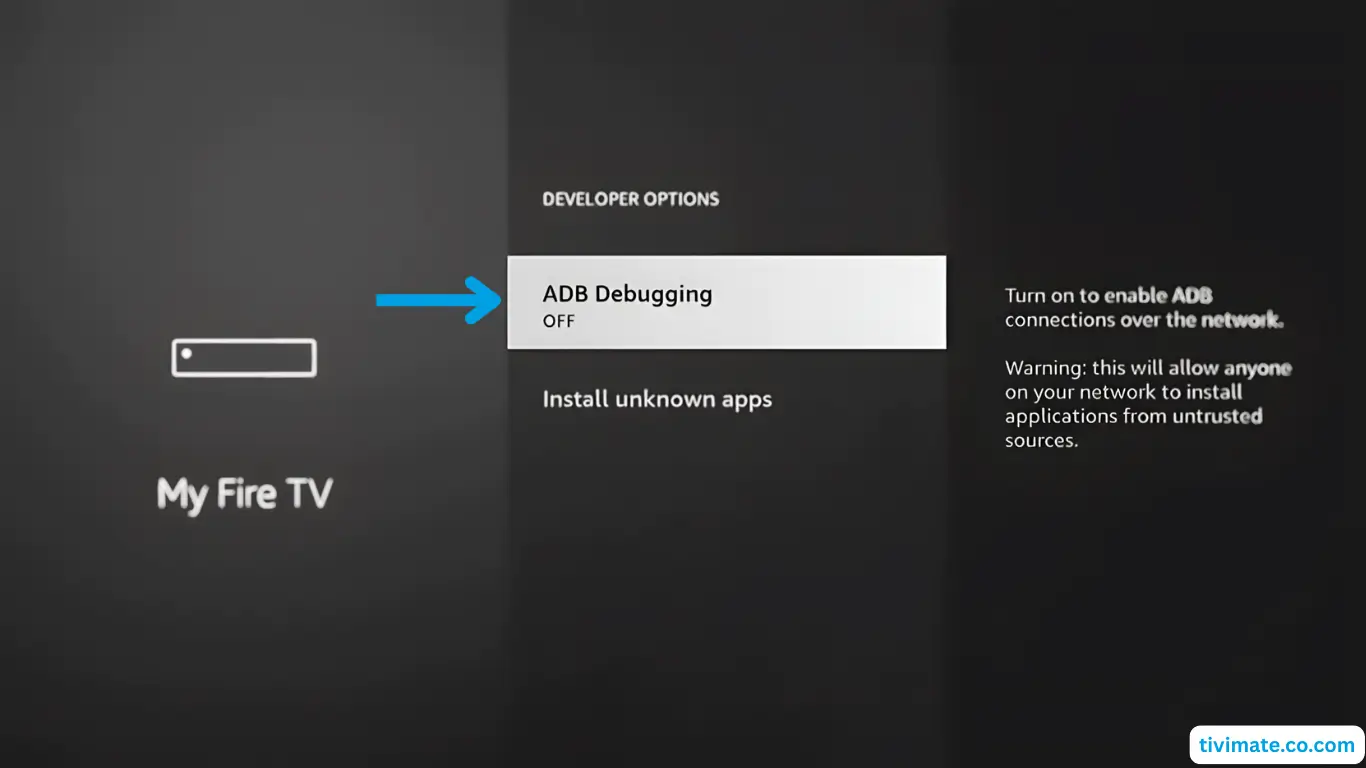
  3. Press Back β†’ open Developer Options β†’
    enable ADB debugging
    Enable ADB debugging
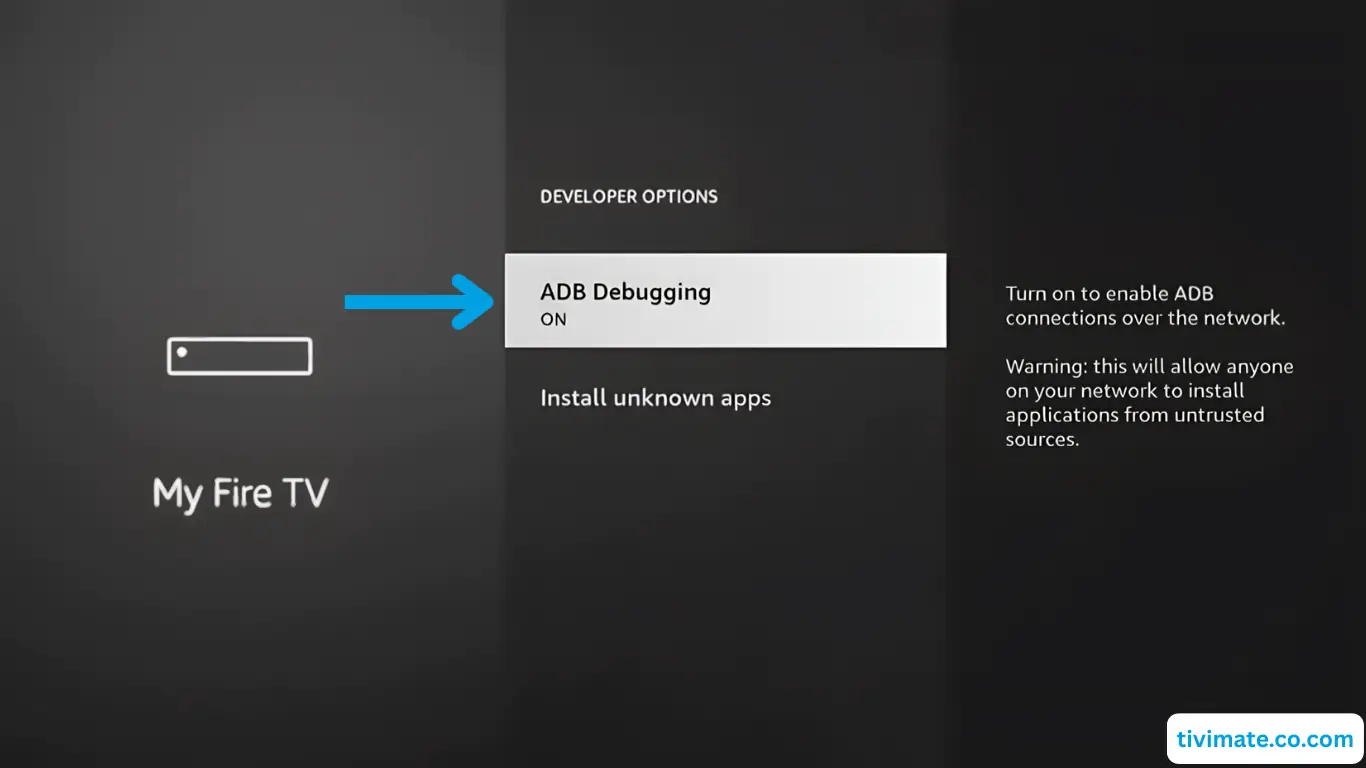
  4. Confirm that ADB debugging is set to On
    ADB debugging is on
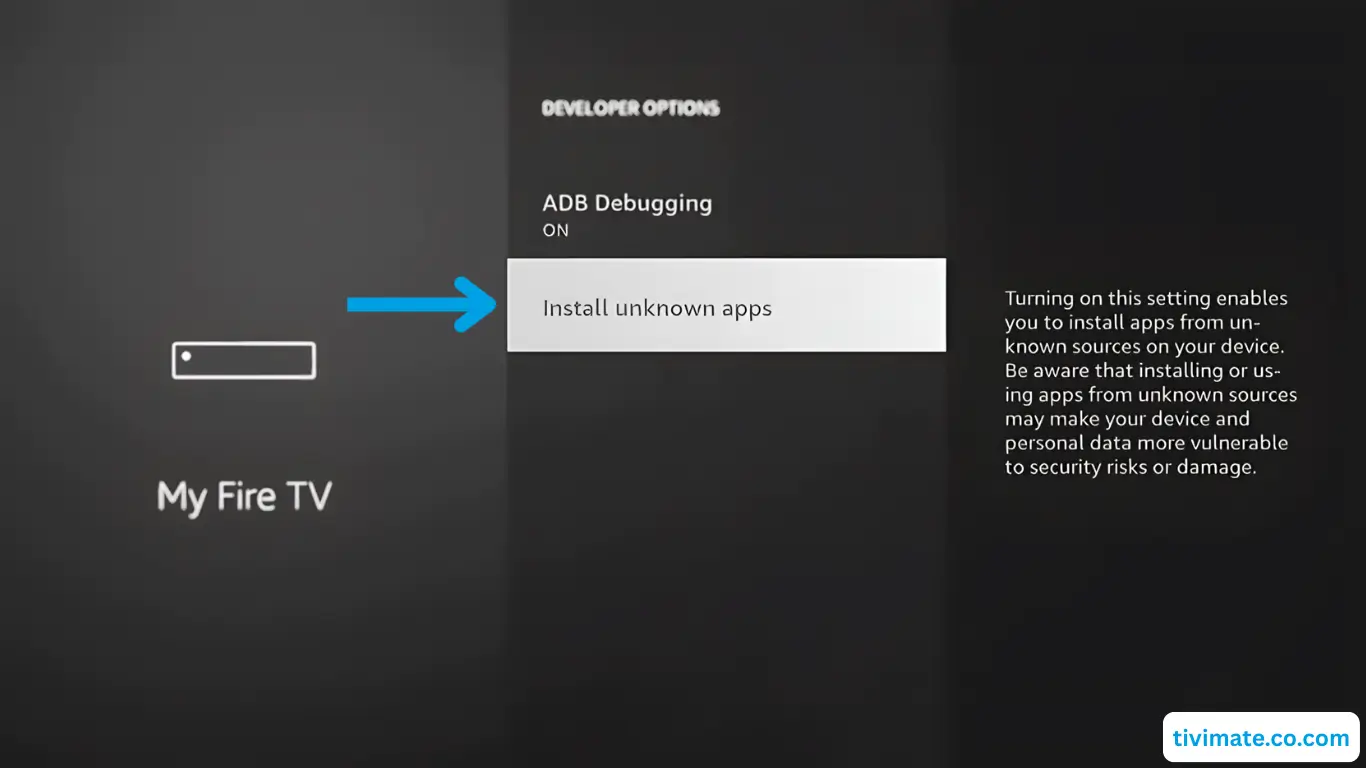
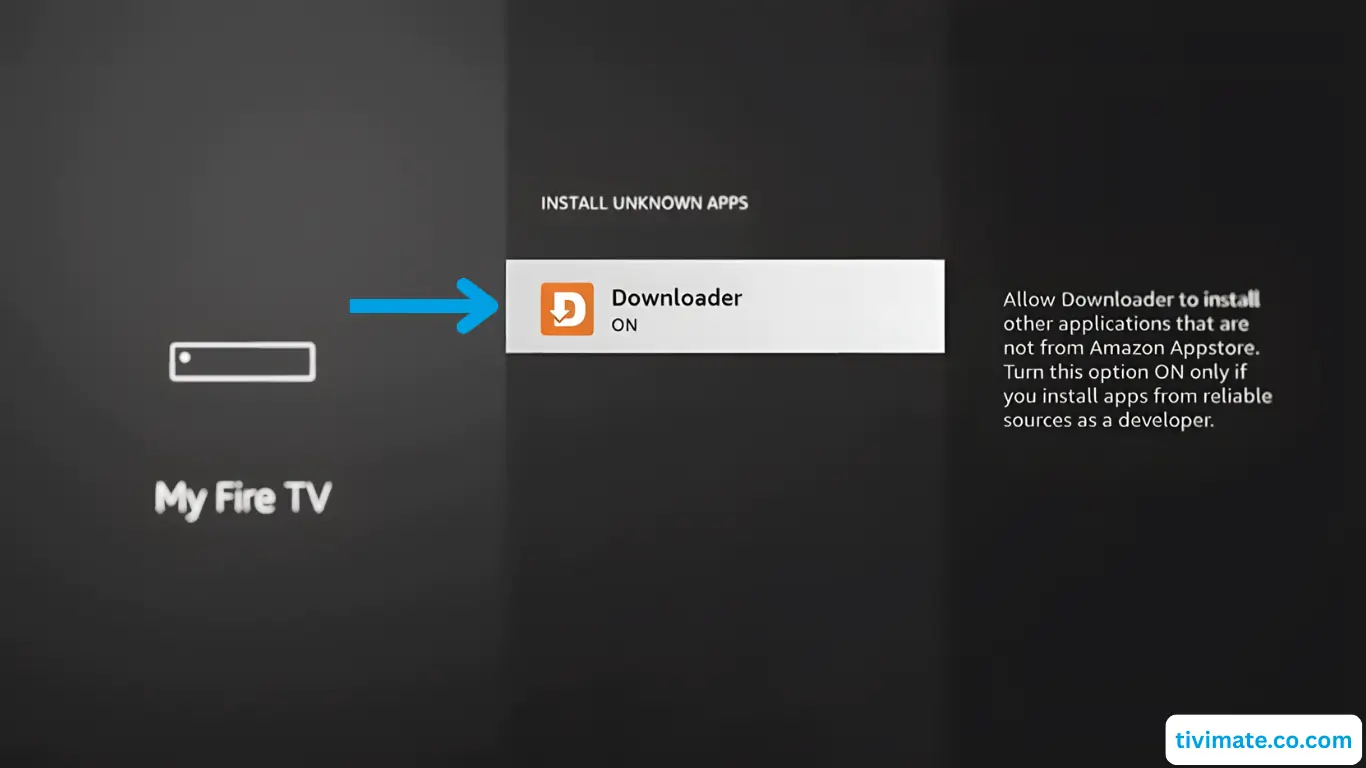
  5. Select Install Unknown Apps β†’ grant
    Downloader permission (press OK)
    Install Unknown Apps setting
    Downloader permission turned on
  6. Press the Home button on your remote to return to the
    home screen
    Press the Home button on your Fire TV remote

Part 3 β€” Install V12Mate via Downloader

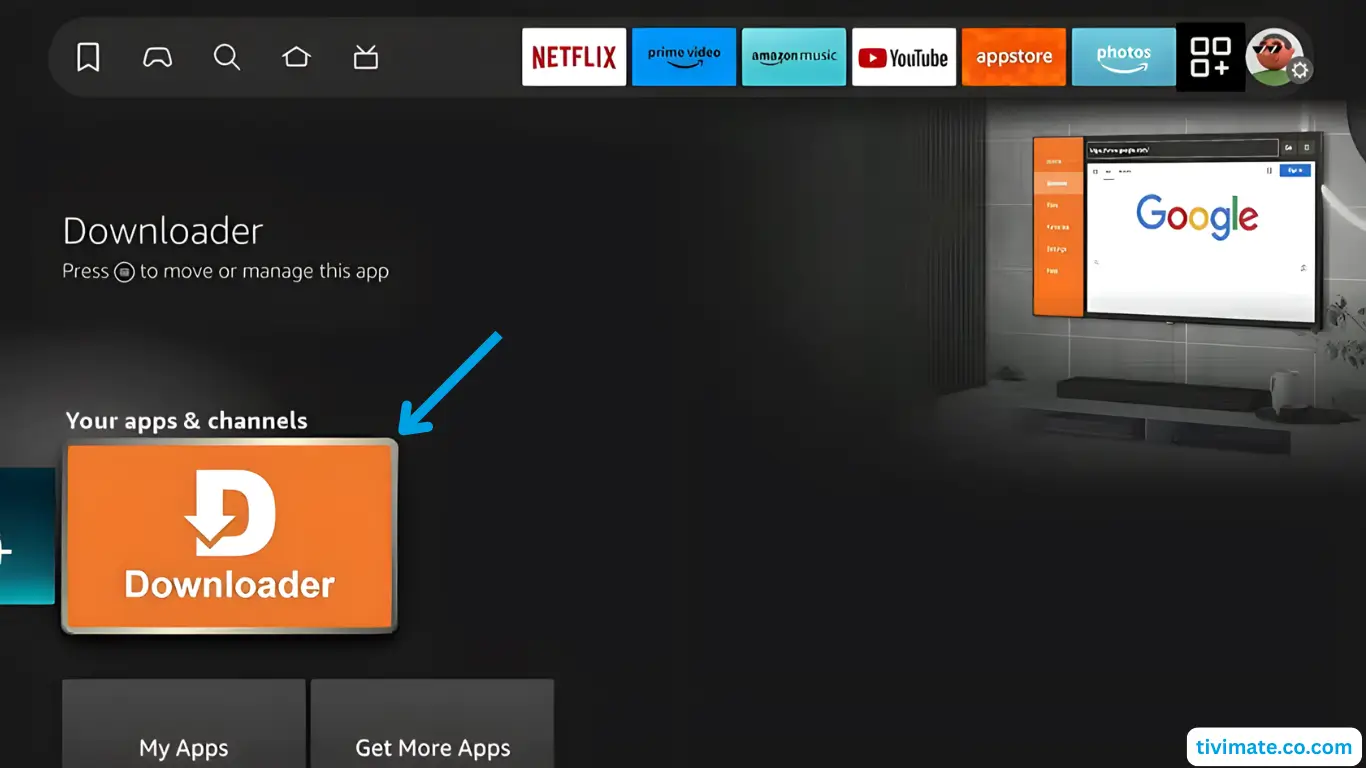
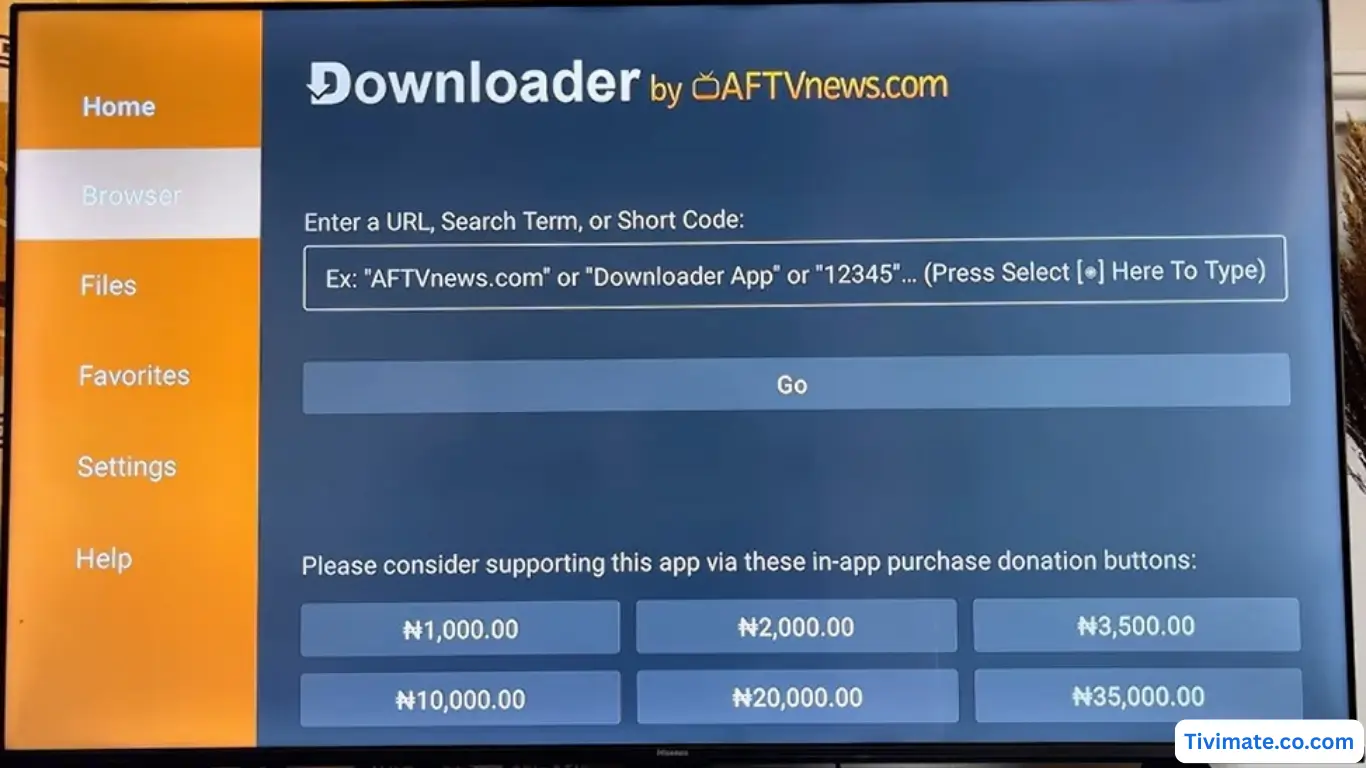
  1. Open the Downloader app
    Find and open Downloader app
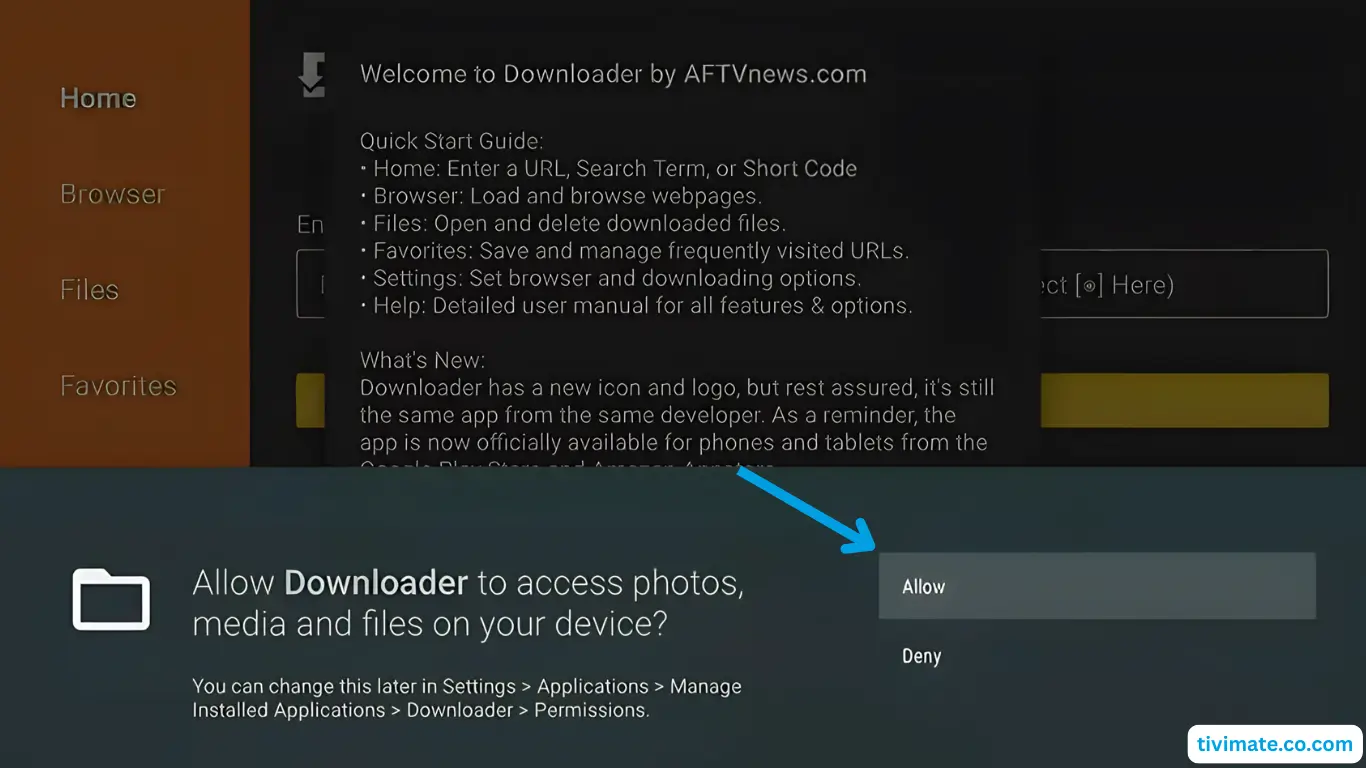
  2. Press Allow to grant file system access
    Press Allow to give Downloader file access
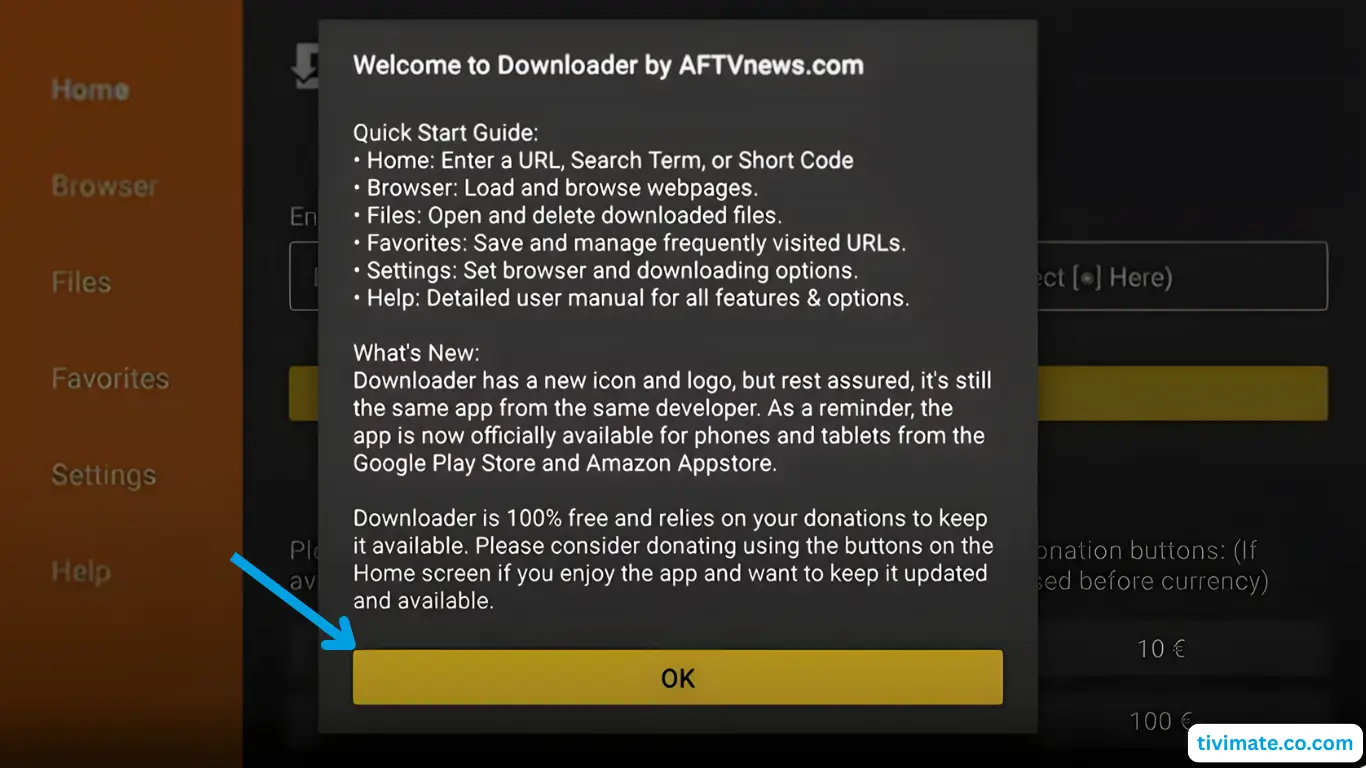
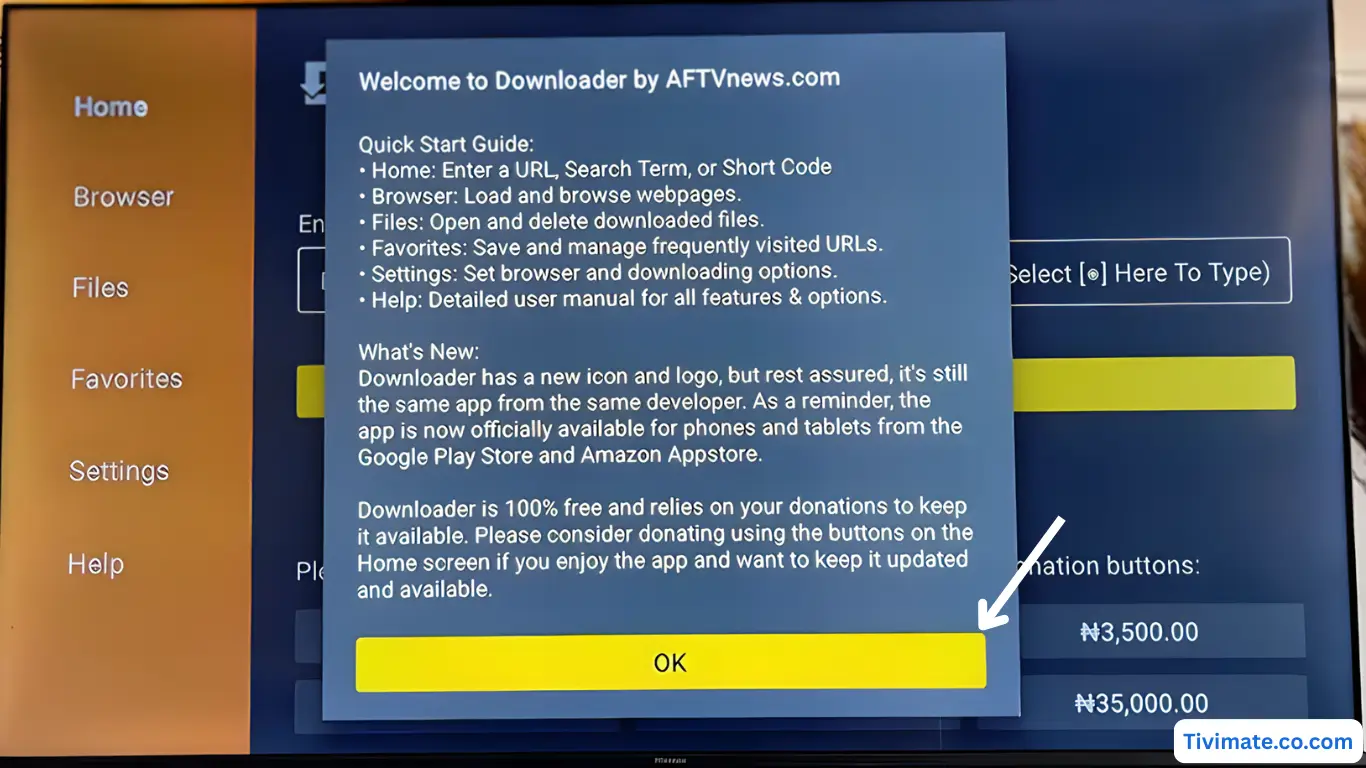
  3. Dismiss the welcome message by pressing OK
    Dismiss Downloader welcome message
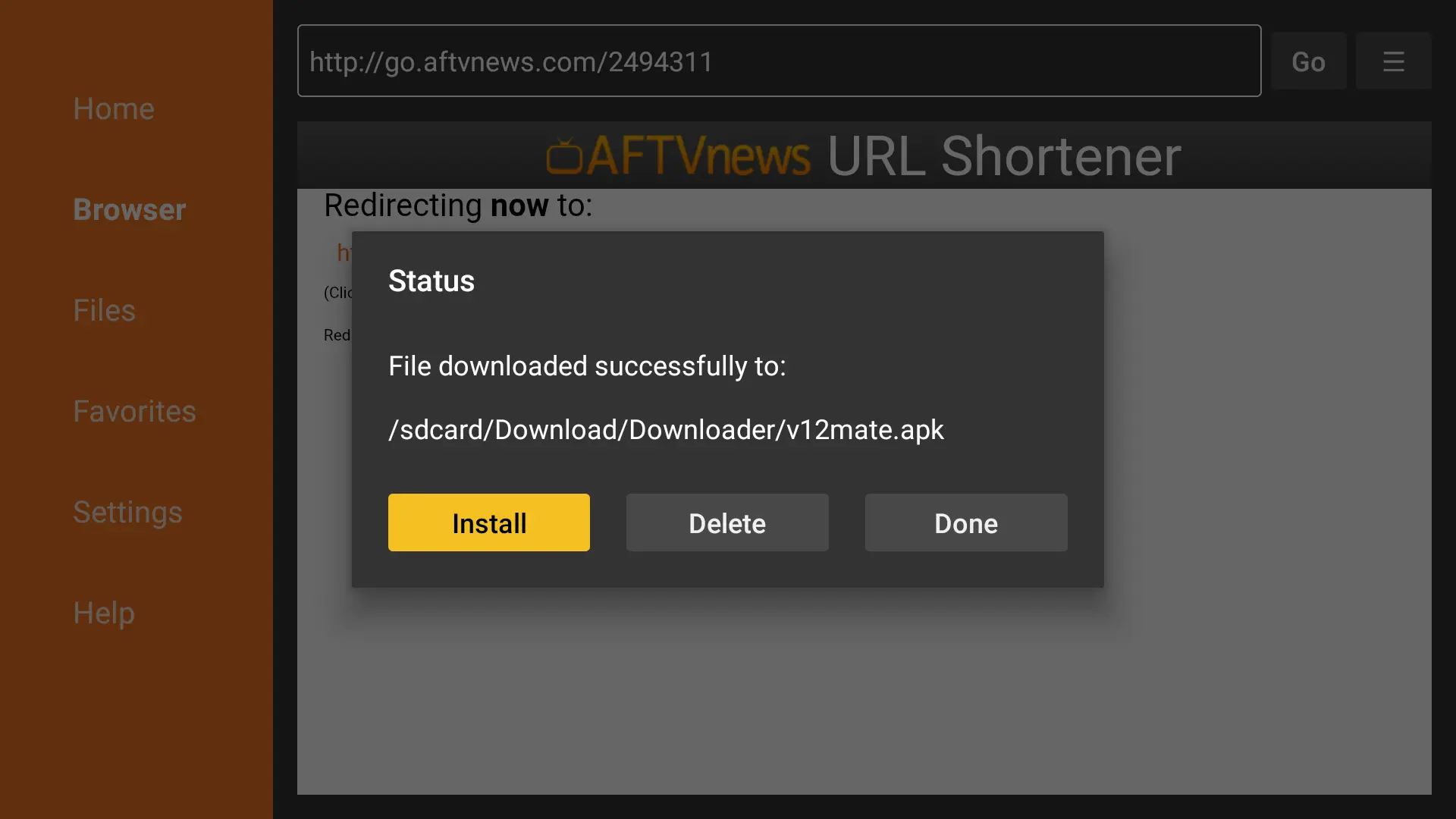
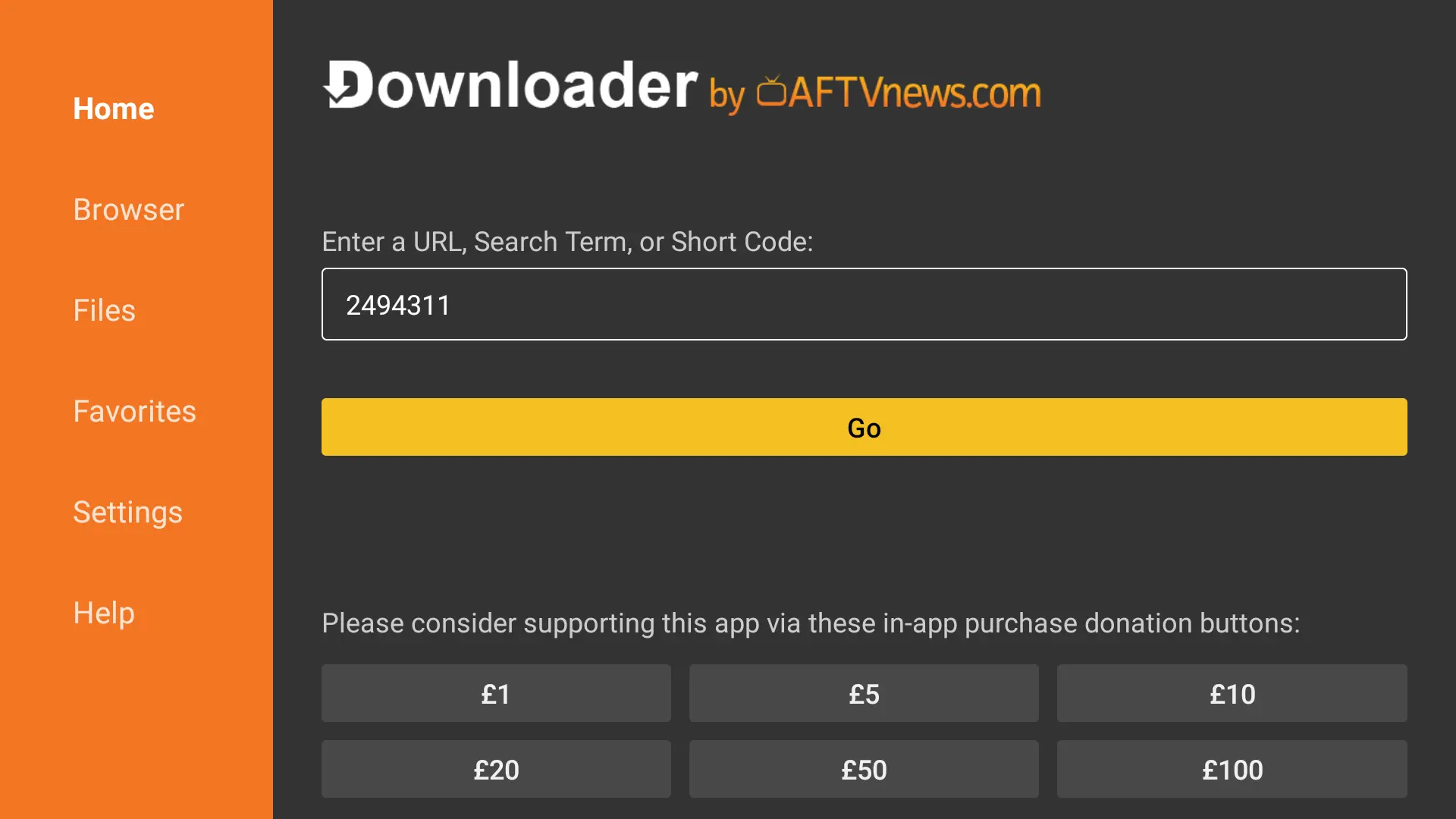
  4. Enter Downloader code for V12Mate: 2494311 β†’ press
    GO
    Enter V12Mate Downloader code 2494311
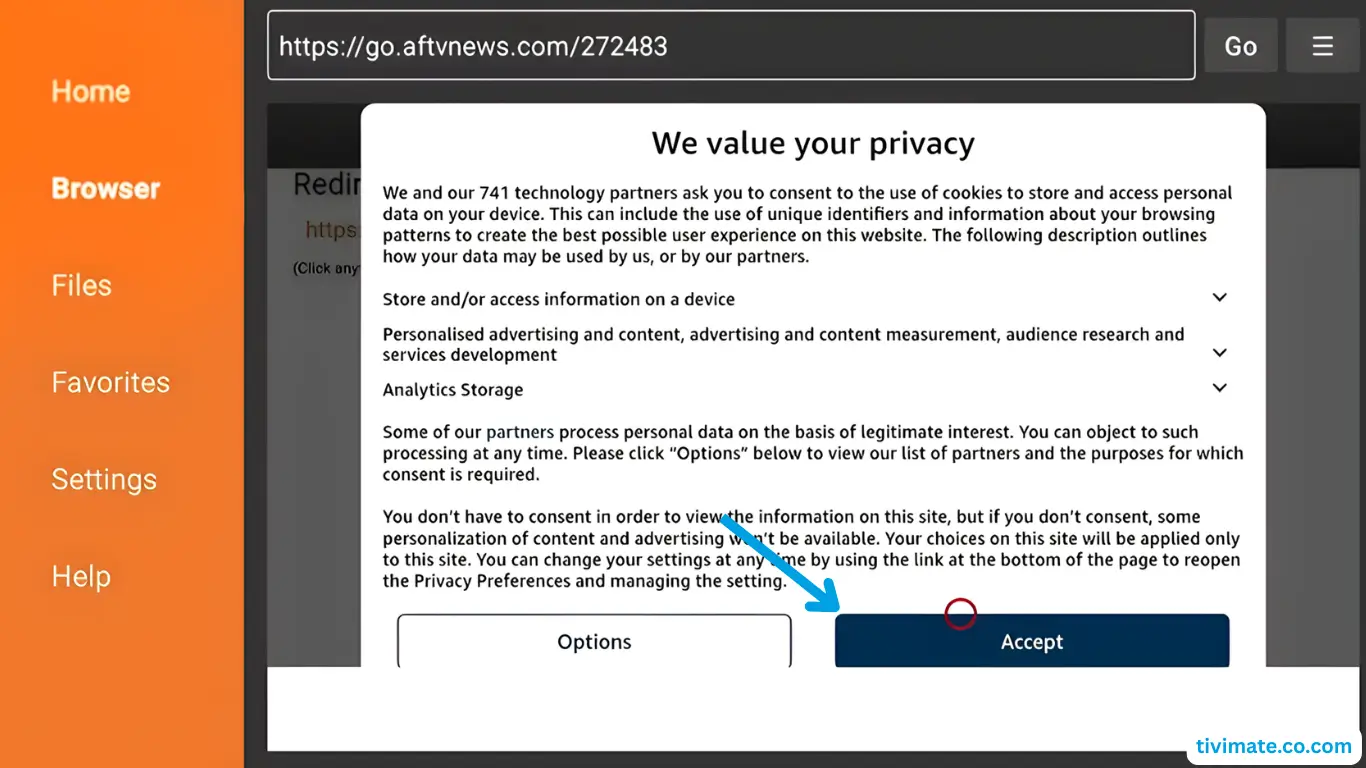
  5. Accept the Privacy Policy β†’ press
    Install β†’ confirm again if prompted
    Accept V12Mate Privacy Policy
    Click Install button
  6. Press Install and wait until the app has fully installed
    V12Mate installing
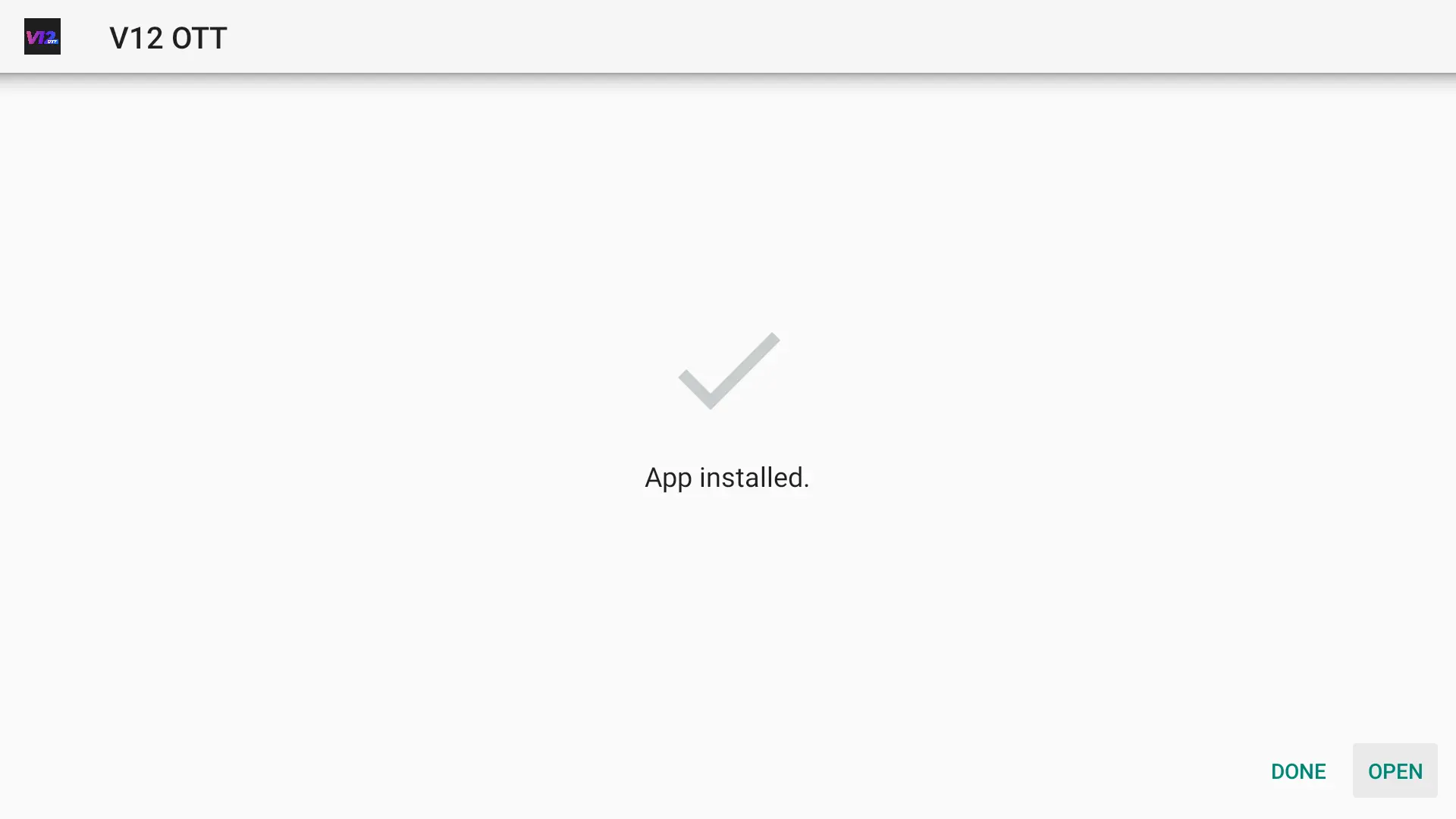
  7. When complete, press OPEN to launch V12Mate
    Press OPEN to launch V12Mate
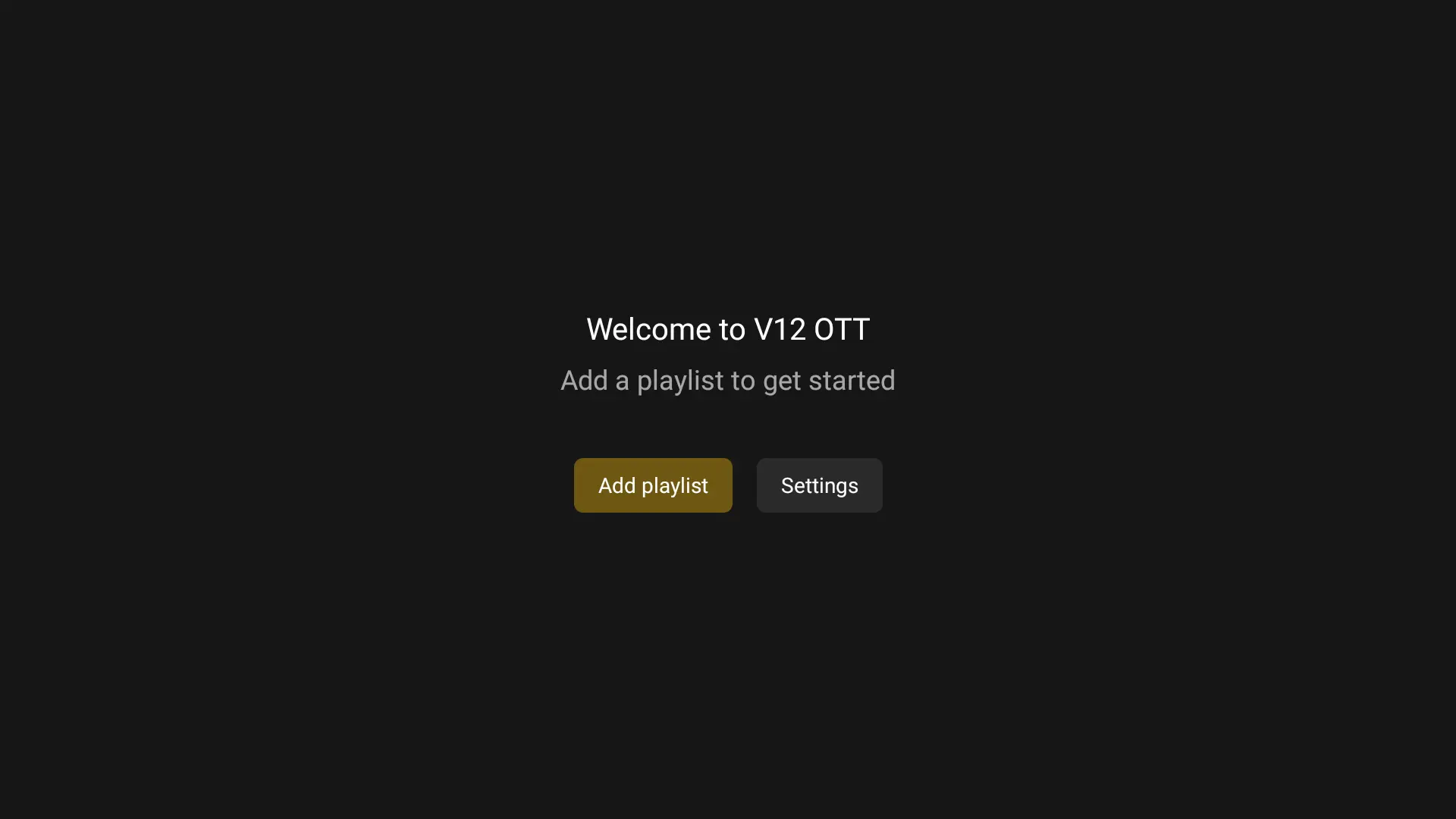
  8. Press Add Playlist
    Add playlist button in V12Mate
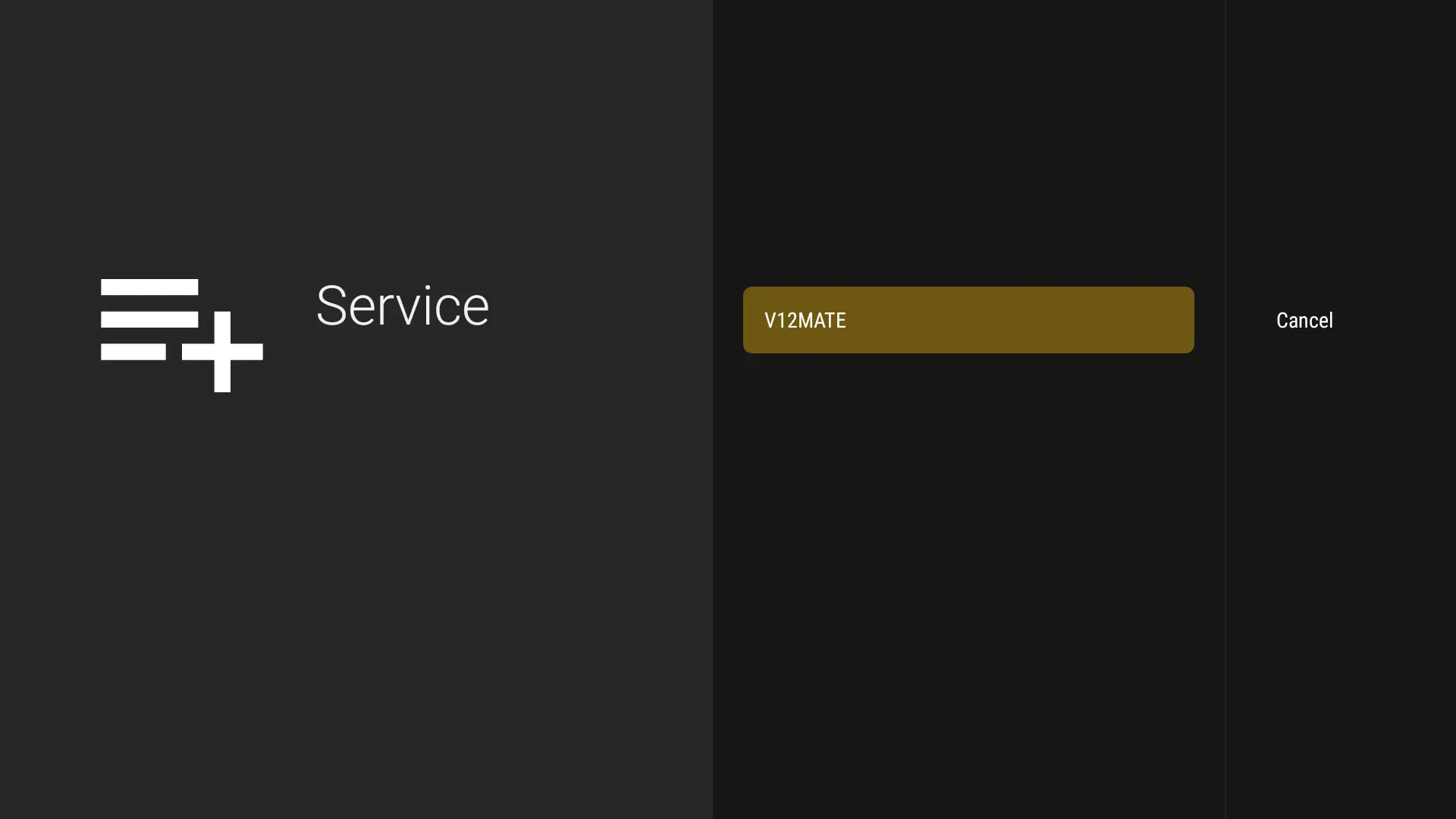
  9. Press V12MATE as the playlist type
    Seeing only “Cancel”? Click here for the fix β†’
    Select V12Mate as playlist type
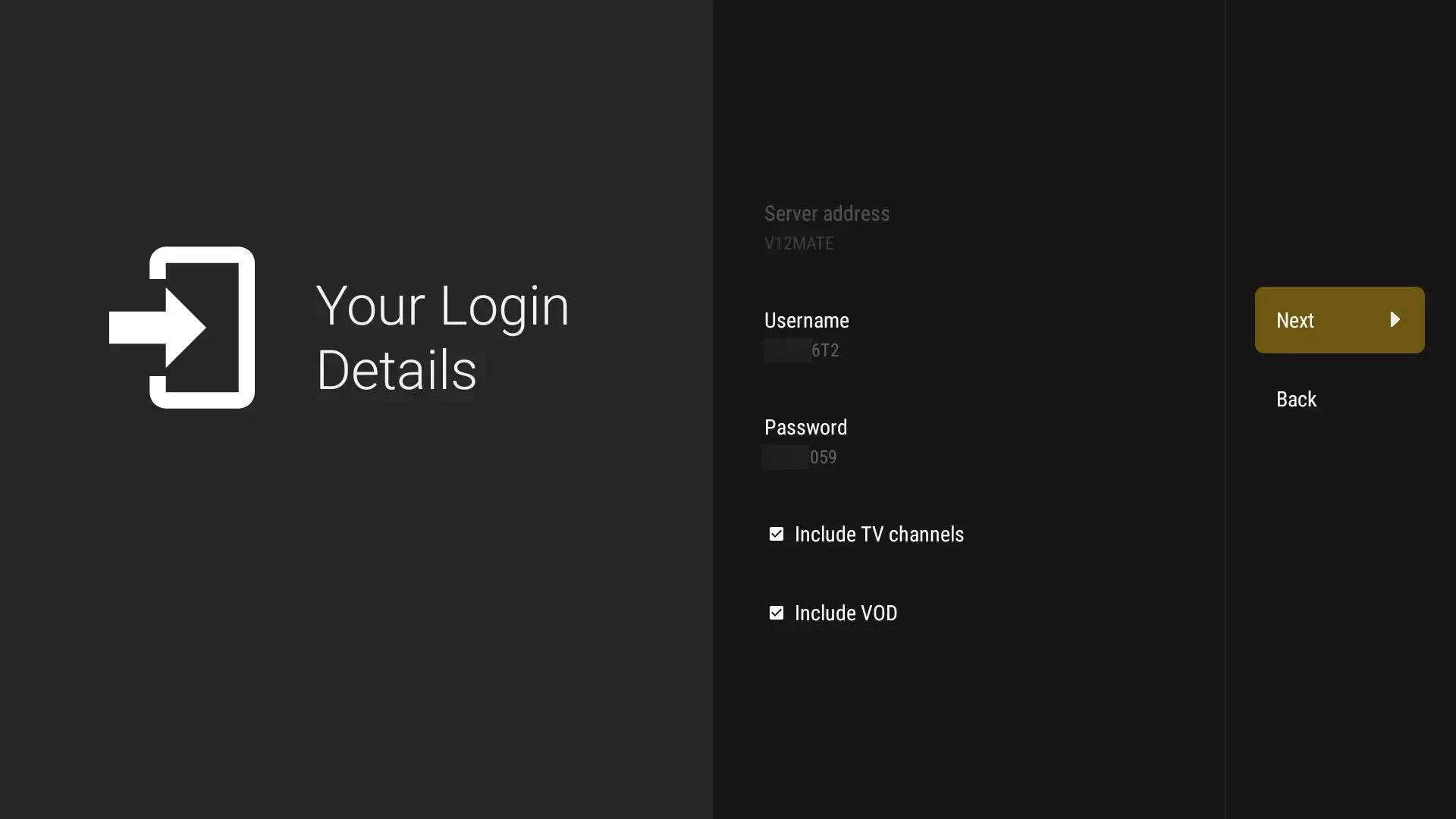
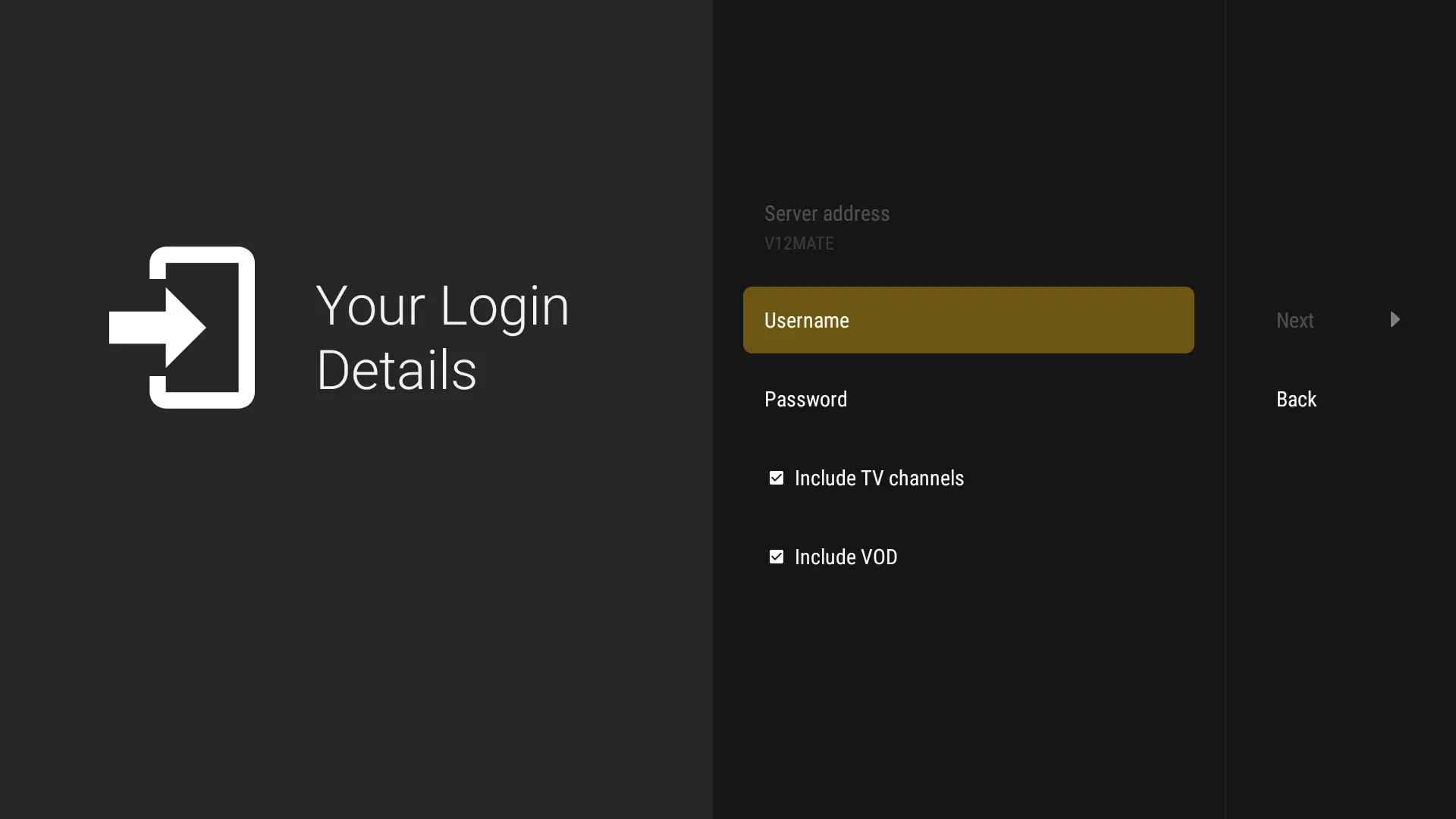
  10. Enter your credentials (Username & Password). No
    server address is required β€” it’s our own player.
    Enter your TVFlexLine credentials
  11. Press Next. Make sure VOD and TV
    Channels
    are both selected
    Select VOD and TV Channels
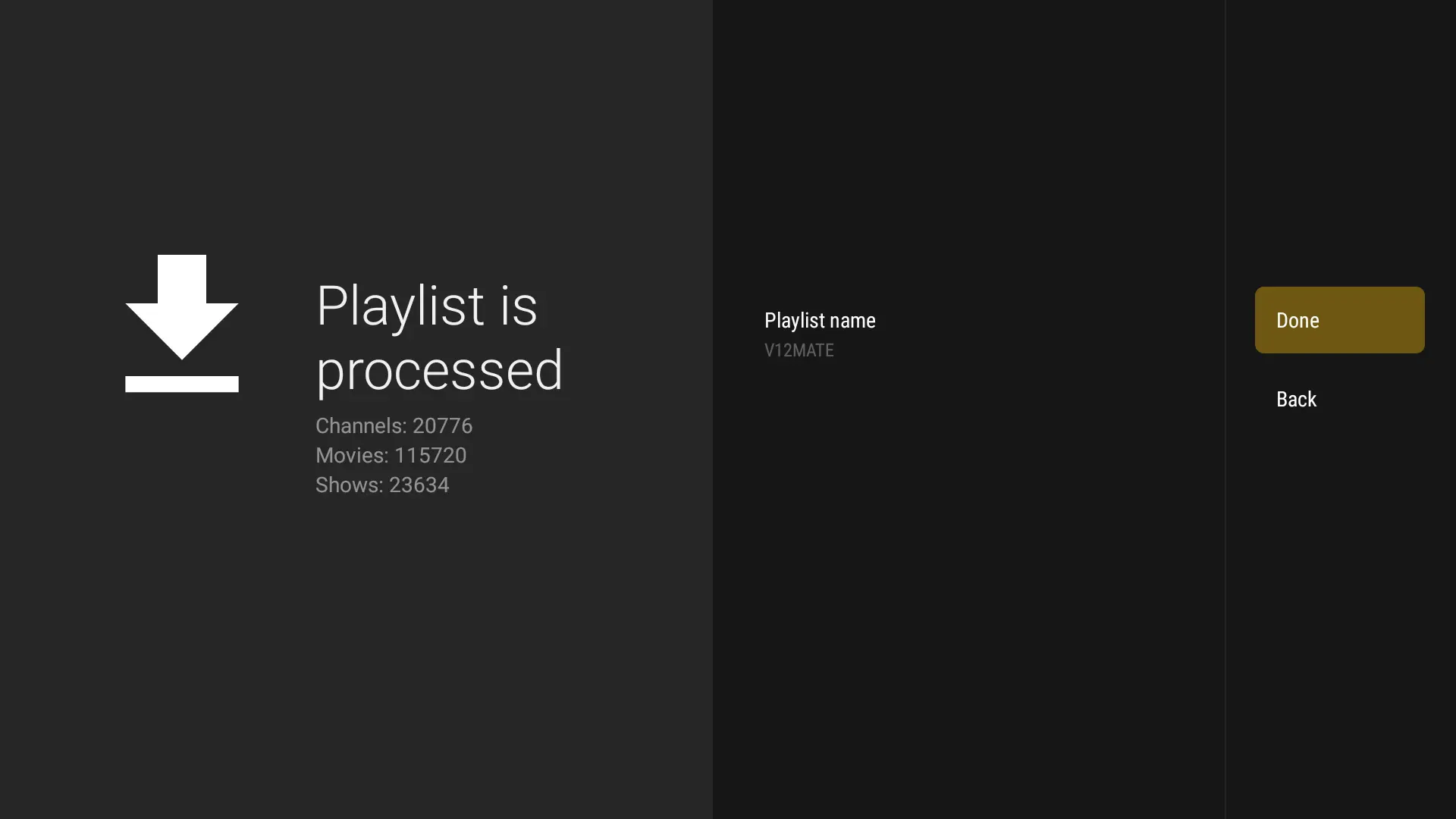
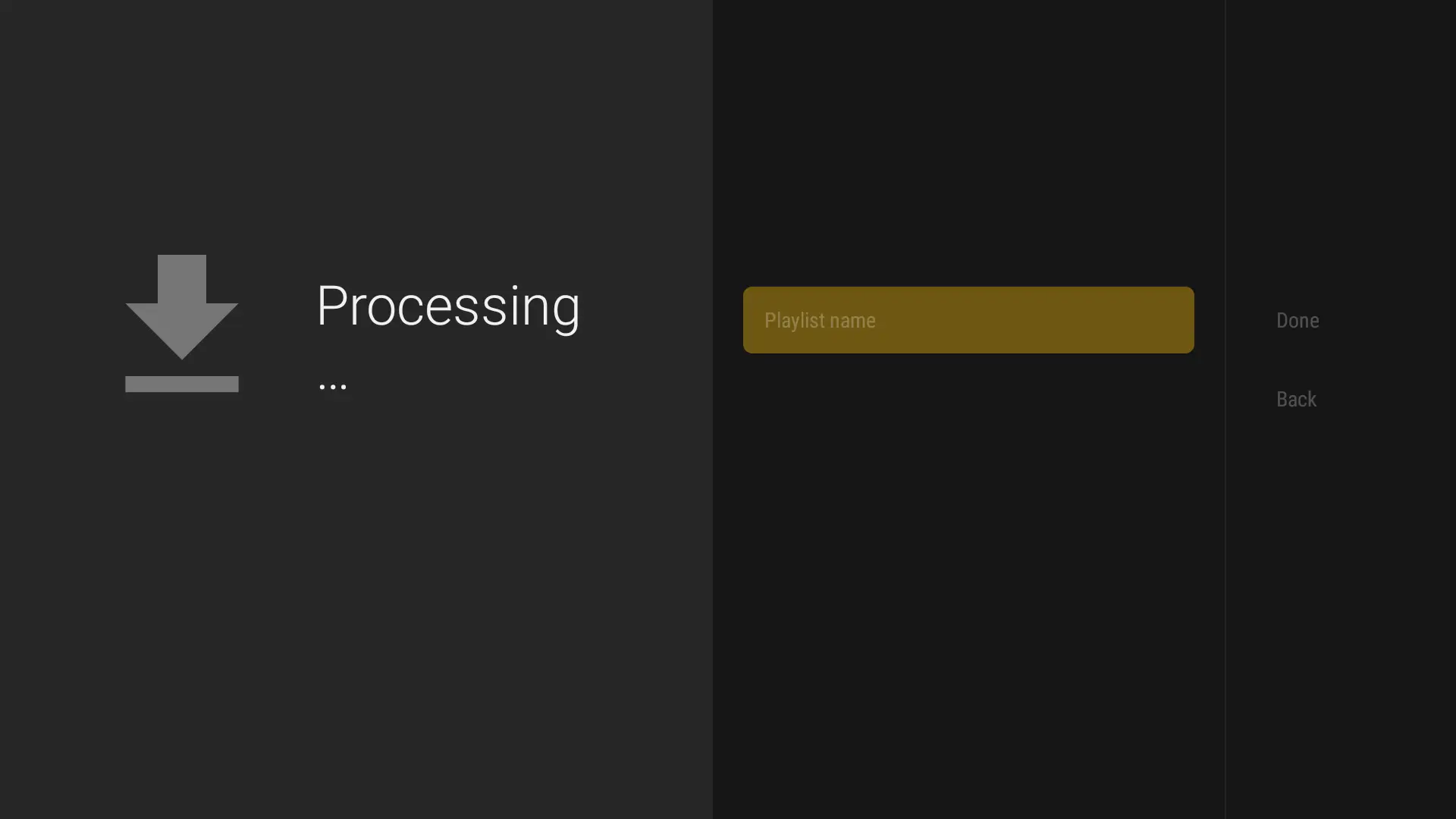
  12. Wait for processing (approximately 1 minute)
    V12Mate processing channels
  13. Press Done β€” wait a few seconds and you’re ready to
    watch! πŸŽ‰
    V12Mate ready to watch

EPG Guide: The program guide (EPG) loads in the background. Allow a few minutes, then
check it under Settings β†’ EPG.
No channels showing? Your login details may be incorrect. Go to Settings β†’
Playlists β†’ V12Mate β†’ Xtream Codes Parameters
and double-check your username and password
including capital letters.

❓ Frequently Asked Questions


V12Mate is TVFlexLine’s own free IPTV player for Firestick and Android TV. It
organizes your live channels and VOD with an EPG. No server address is needed β€” just your username and
password.

Yes, V12Mate works with most Firestick models. Ensure you have enough storage and
a stable Wi-Fi connection for the best experience.

Delete the playlist, re-add it and verify your credentials. Check for typos in
your username and password β€” they are case-sensitive.

Re-enable ADB debugging and Unknown Sources if needed. Clear the app cache if it
runs slowly. Reinstall for major issues, or consider a VPN if your ISP throttles streaming traffic.

πŸ‘½ Android TV & Box Setup Guide

⏱️ 3–5 minutes
πŸ“Ί V12Mate Player
βœ… Easy Setup

V12Mate (Recommended)
Perfect Player
TiviMate
Compatible devices: Sony, TCL, Hisense, Philips, Nvidia Shield, Chromecast with Google TV,
Mi Box, and most Android TV boxes.

Method 1 β€” Install V12Mate via Downloader (Recommended)

  1. Search for Downloader in the Play Store and tap
    Install
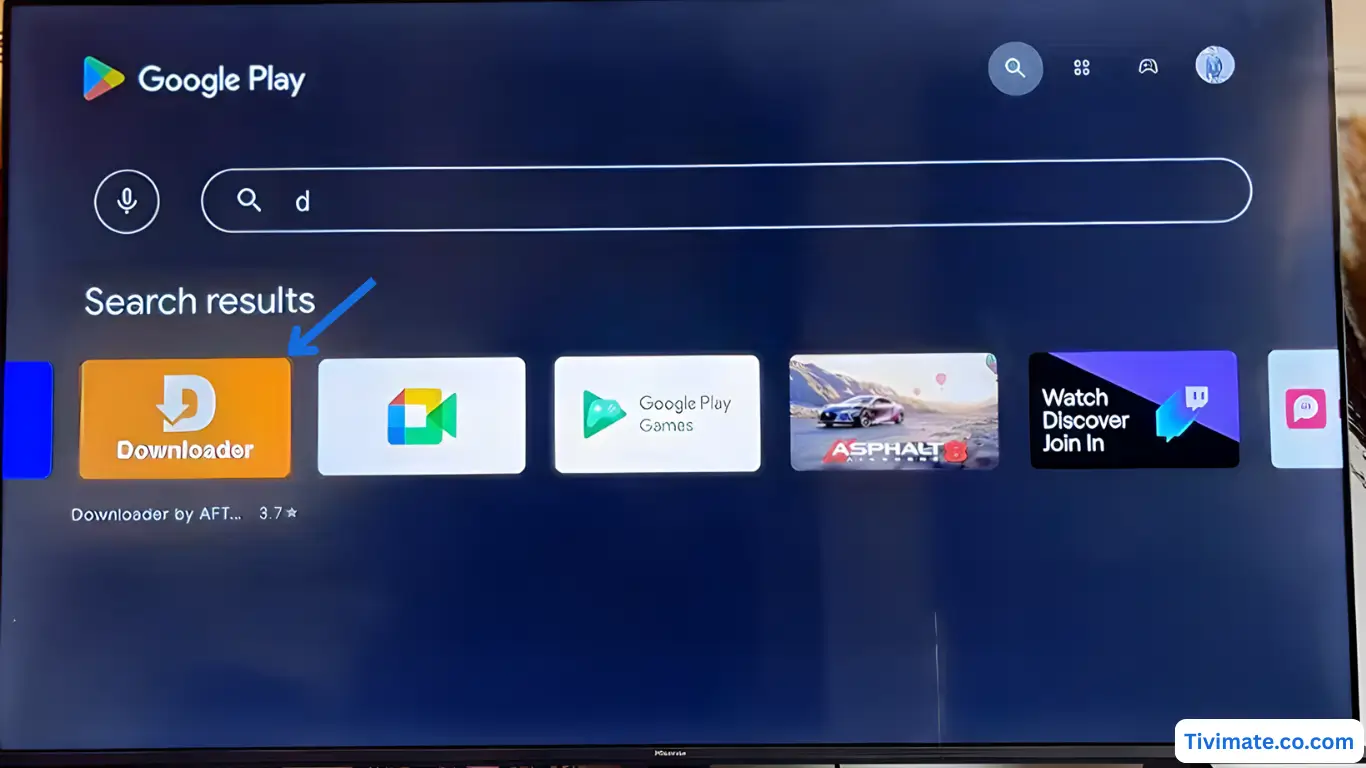
    Install Downloader from Play Store on Android TV
  2. Press Allow when prompted for file access
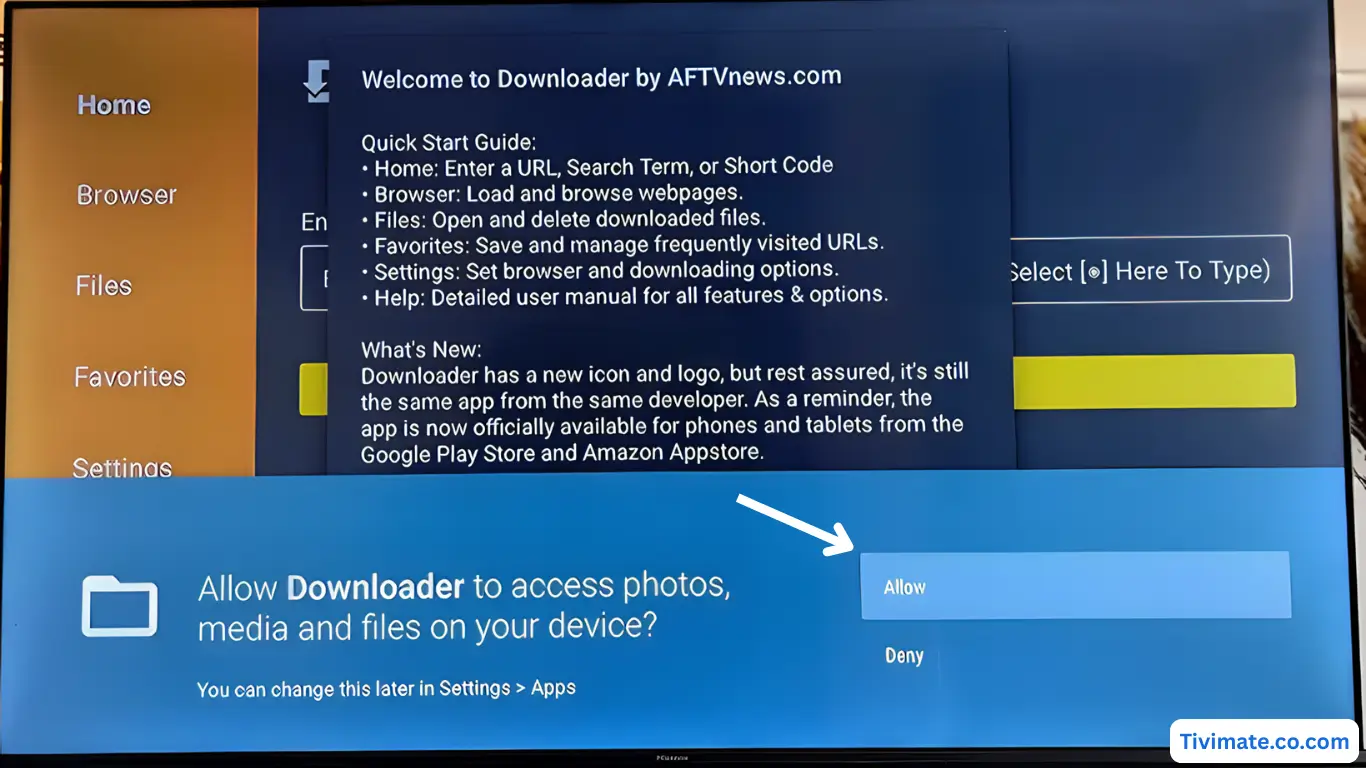
    Press Allow on Android TV
  3. Click OK to confirm and proceed
    Click OK to confirm
  4. Downloader is ready β€” now enter Downloader code: 2494311 β†’
    press GO
    Downloader is ready on Android TV
    Enter V12Mate Downloader code
  5. Accept Privacy Policy β†’ press Install
    Accept Privacy Policy
  6. When complete, press OPEN β†’ tap Add
    Playlist
    β†’ select V12MATE
    Open V12Mate
  7. Enter your Username and Password, press
    Next, keep VOD + TV Channels selected, wait ~1 minute, then press
    Done πŸŽ‰
    Enter credentials in V12Mate

Tip: If Developer Options is not visible, go to About and tap
Build Number 7 times to unlock them.

❓ Frequently Asked Questions


No. TiviMate is a third-party player. TVFlexLine’s own player is V12Mate, which is
free. TiviMate requires its own premium license to unlock all features.

Yes. Configure Perfect Player with your server URL, username, and password using
the Xtream Codes (XC API) login method.

Make sure TiviMate is fully uninstalled first. Also verify that “Unknown Sources”
or “Install from Unknown Apps” is enabled for the Downloader app in your device settings.

πŸ“Ÿ Formuler / Dreamlink Setup Guide

⏱️ 5–8 minutes
πŸ“Ÿ MyTVOnline / DOL2
βœ… Xtream Codes

MyTVOnline 2 & 3
DOL2 App
Compatible models: Formuler Z8, Z10, Z11, GTV, and all Formuler Android TV boxes. Also
Dreamlink T2 and DOL2-compatible devices.

Formuler Z β€” MyTVOnline 2 & 3 Setup

  1. Open MyTVOnline 2 or 3 from your Formuler home screen
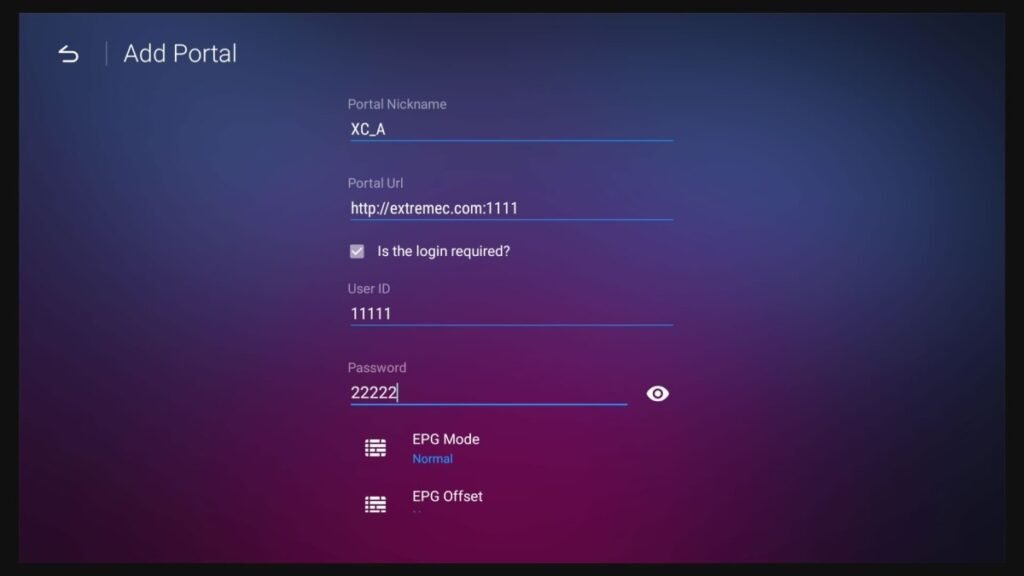
  2. Navigate to Menu β†’ Connections β†’ Add Portal
    Formuler MyTVOnline2 portal setup screen
  3. Enter your configuration:
    β€’ Portal Name: Any name (e.g. “TVFlexLine”)
    β€’ Portal URL: Your server URL (from your welcome email)
    β€’ Login Required: Enable this option
    β€’ Username: Your IPTV username
    β€’ Password: Your IPTV password
  4. Press Connect β€” your channels will load automatically

Dreamlink β€” DOL2 App Setup

  1. Open DOL2 App from your Dreamlink home screen
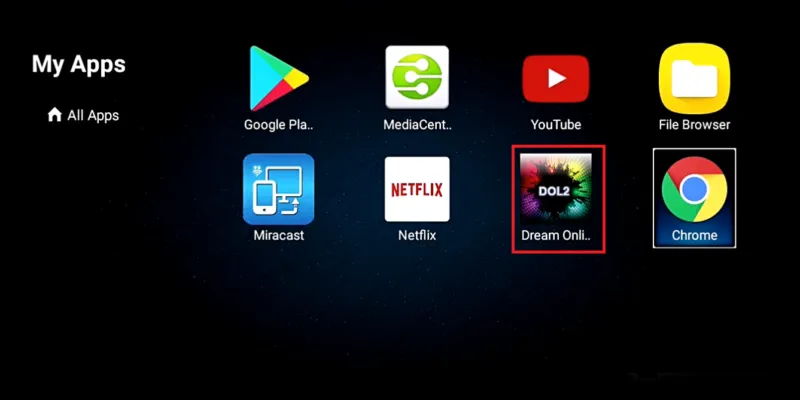
    Dreamlink DOL2 app setup
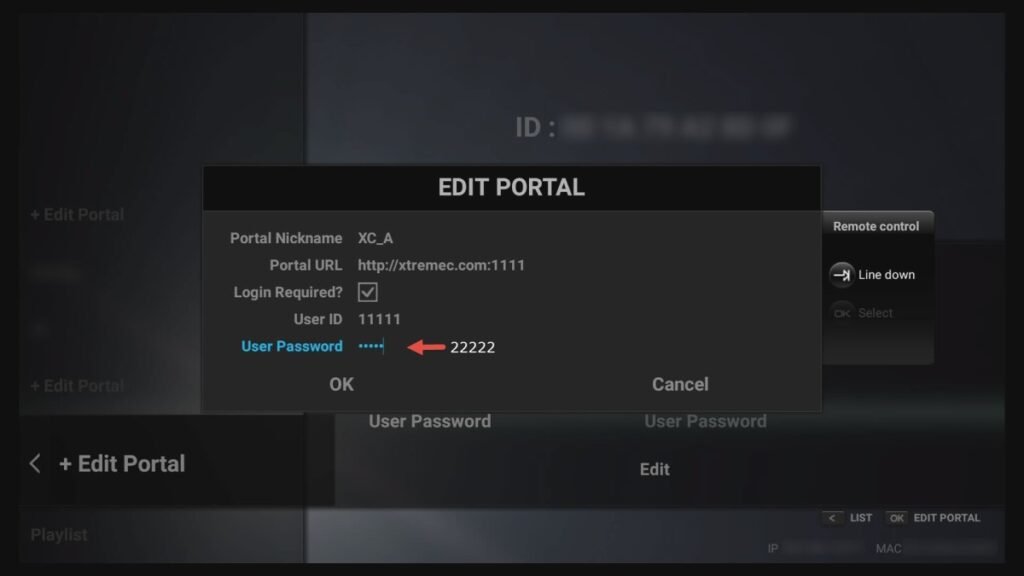
  2. Go to Menu β†’ Portals β†’ Edit Portal
    Dreamlink Portal configuration screen
  3. Enter your portal details:
    β€’ Portal Title: Any name
    β€’ Portal URL: Your IPTV server URL
    β€’ Login Required: Yes
    β€’ Username & Password: Your credentials
  4. Save the configuration and restart the app to connect

Note: Unlike MAG boxes, Formuler and Dreamlink boxes do not require MAC address
registration β€” only your username and password.

❓ Frequently Asked Questions


MyTVOnline 2 is the newer version with an improved interface and better Xtream
Codes support. We recommend using MyTVOnline 2 or 3 for the best performance.

No. Formuler boxes use the Xtream Codes login method β€” just your username and
password from your TVFlexLine subscription.

Check that “Login Required” is enabled, verify your credentials are correct,
ensure a stable internet connection, and try restarting the MyTVOnline app.

πŸ“Ί Smart TV Setup Guide β€” All Brands

⏱️ 5–7 minutes
πŸ“Ί LG, Samsung, Sony & More
βœ… App Store

⚠️

Important Notice

This tutorial uses a third-party app that is NOT owned or managed by
TVFlexLine
. Some apps may require their own paid license after the trial period. This
guide only helps you configure the app with your subscription.


Hot Player
Perfect Player
Compatible models: LG WebOS, Samsung Tizen, Sony Android TV, TCL, Hisense, Vizio, and
other major Smart TV brands.
Note: If your Smart TV has the Google Play Store, follow the Android TV tutorial instead.

Step 1 β€” Install Hot Player

  1. On your Smart TV, open the App Store (LG Content Store,
    Samsung Apps, etc.)
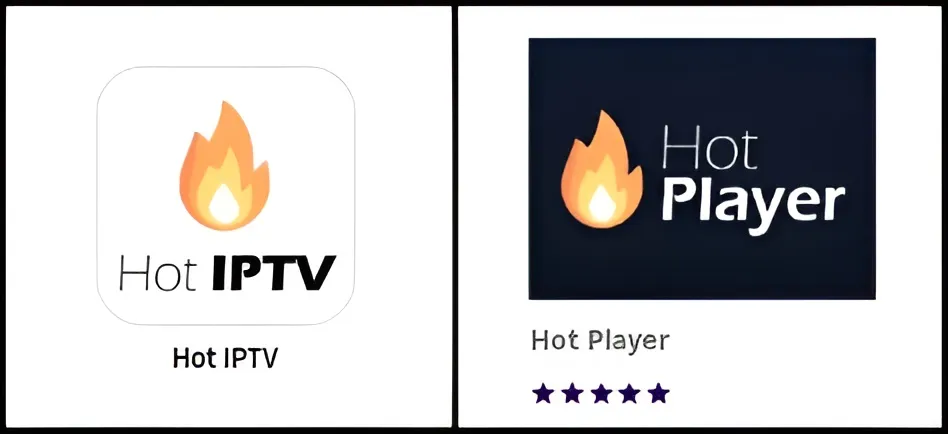
  2. Search for “Hot Player” or “Hot IPTV”
    Search for Hot Player in Smart TV App Store
  3. Select Hot Player from results and click
    Install

Step 2 β€” Note Your MAC Address

  1. Open Hot Player on your Smart TV
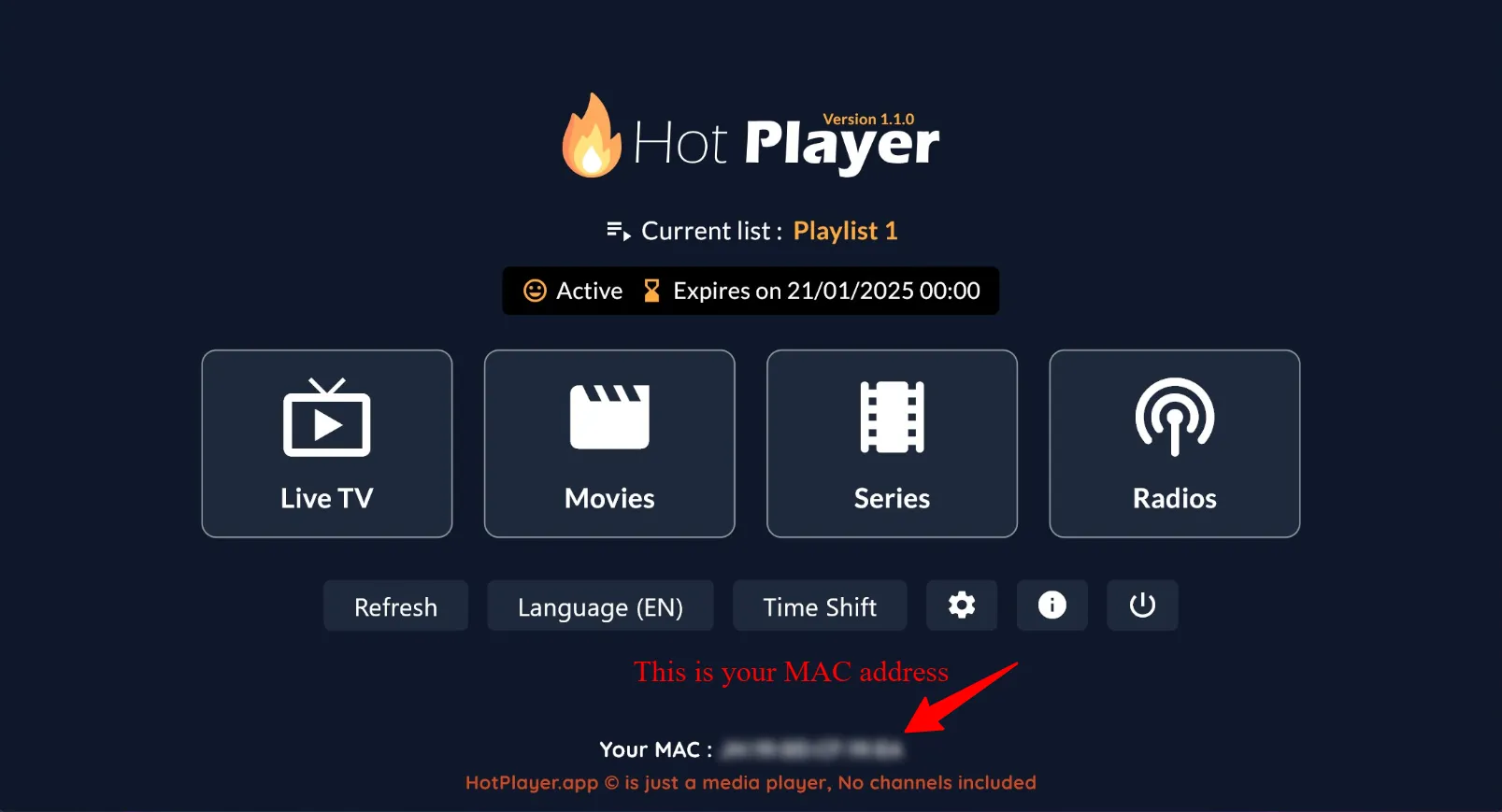
  2. Your MAC Address will be displayed. Write it down or
    photograph it β€” you’ll need it shortly
    MAC Address displayed in Hot Player app

Step 3 β€” Configure Your Playlist Online

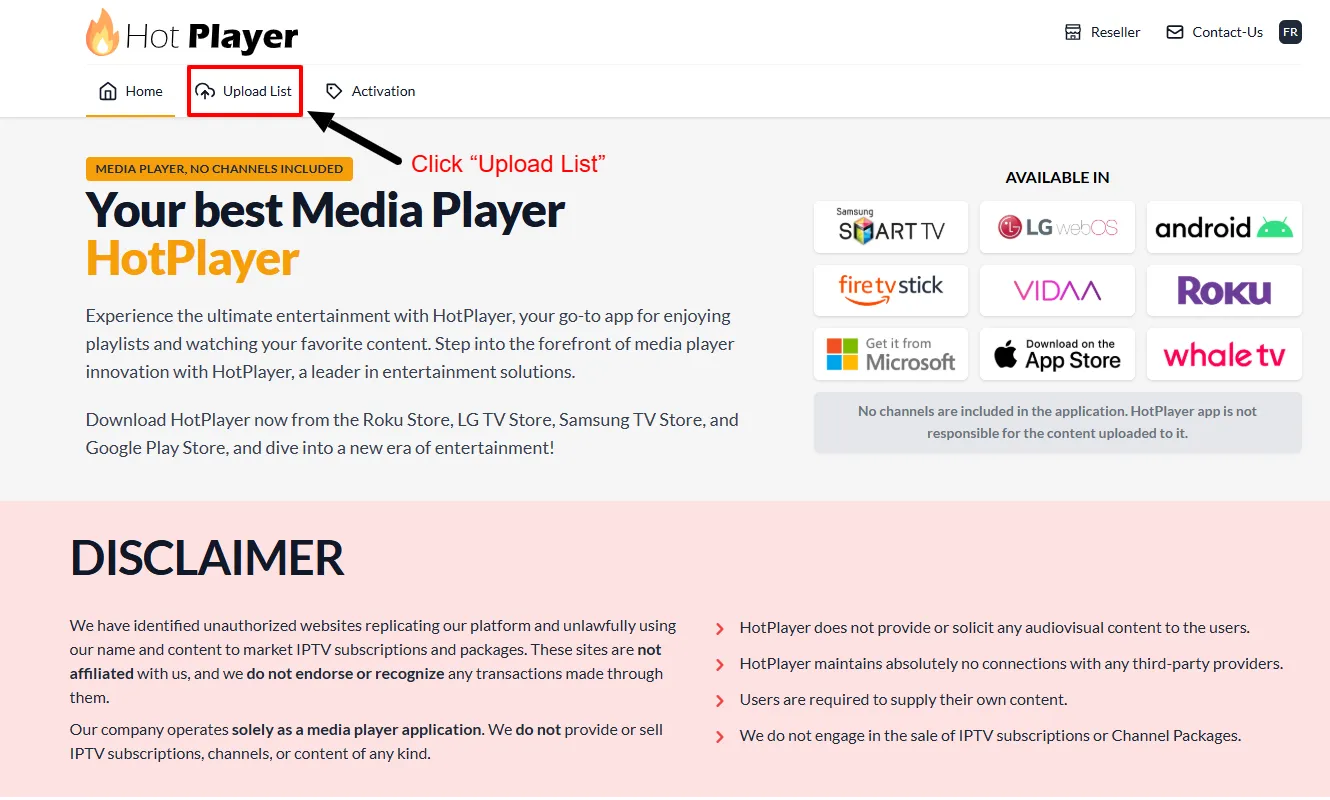
  1. On your phone or computer, visit https://hotplayer.app
  2. Click “Upload List”
    HotPlayer Upload List menu
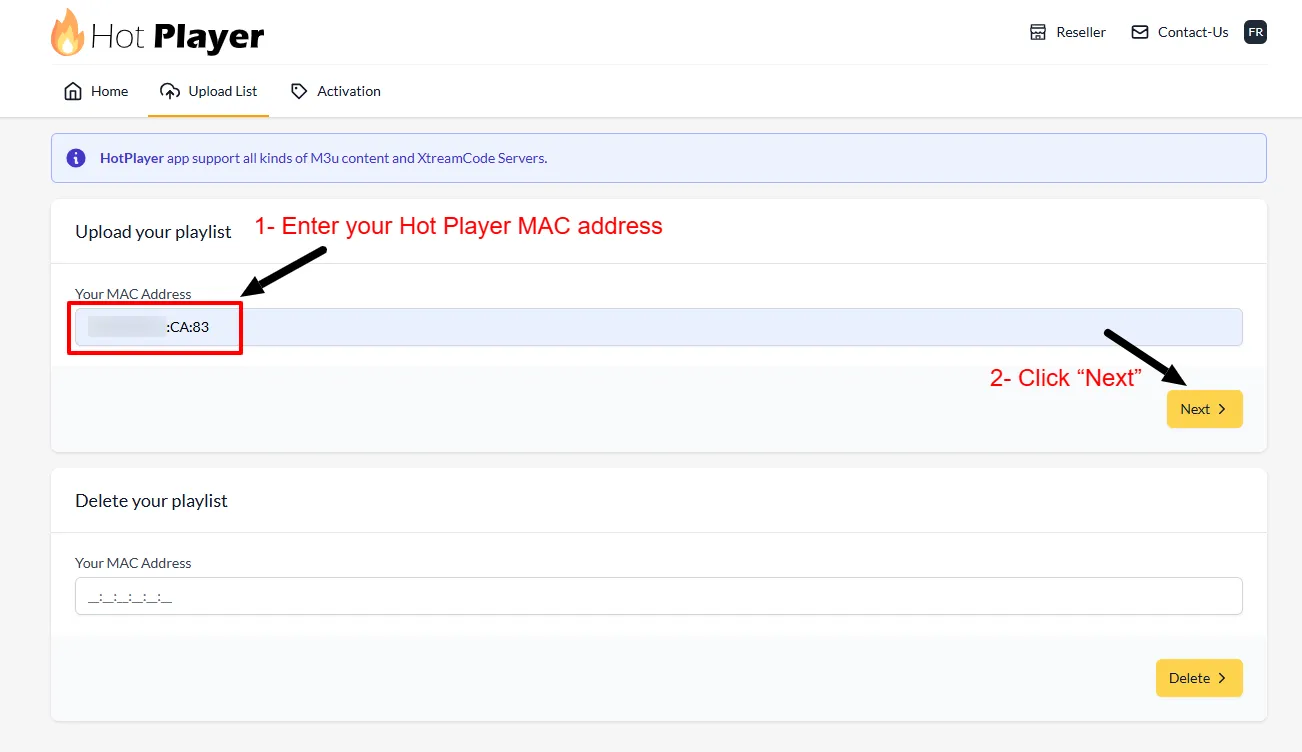
  3. Enter your Smart TV’s MAC Address and click
    Next
    Enter MAC address in HotPlayer
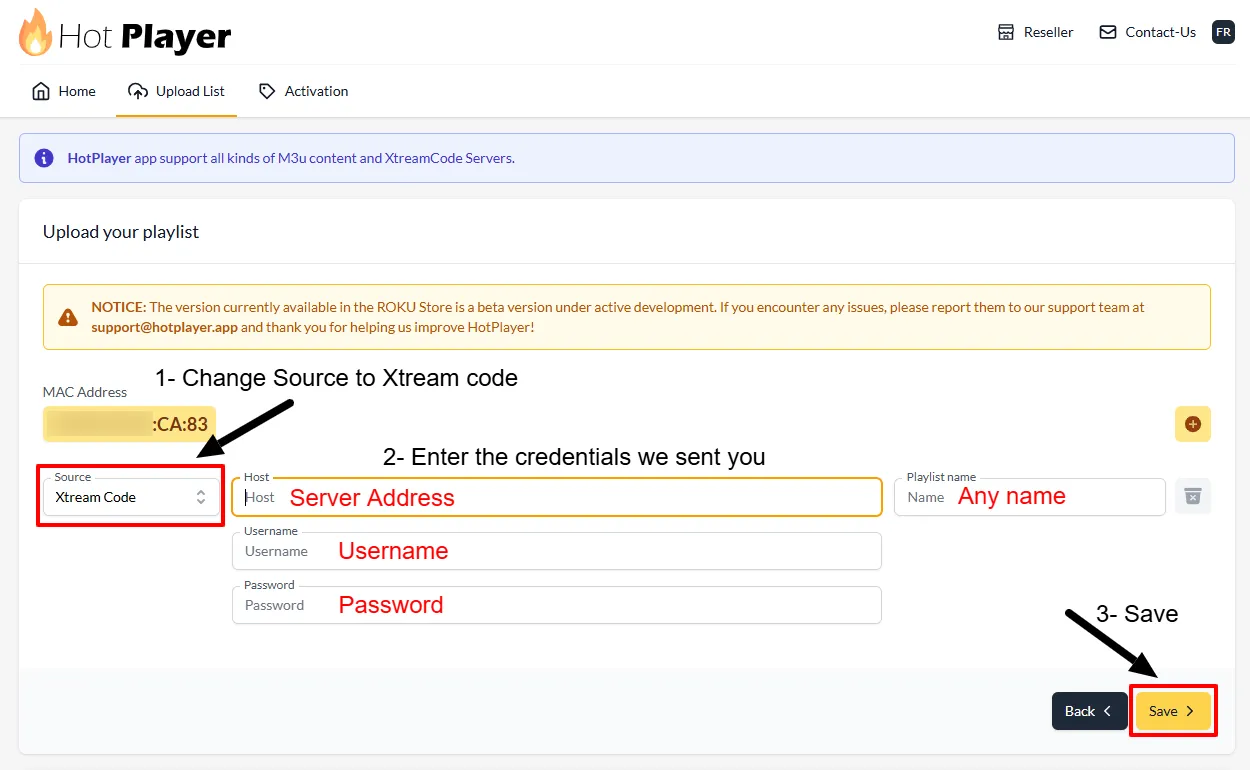
  4. Change the Source to “Xtream Code”
    Select Xtream Code source in HotPlayer
  5. Fill in your details:
    β€’ Host: Your server address
    β€’ Username: Your IPTV username
    β€’ Password: Your IPTV password
    Then click Save
  6. Return to your TV and refresh Hot Player β€” your channels will load.
    You’re all set! πŸŽ‰

Tip: For best quality, use a wired (Ethernet) connection
if possible. Minimum 25 Mbps for HD, 50+ Mbps for 4K.

❓ Frequently Asked Questions


The MAC Address is displayed in the Hot Player app under the Account section
when you first open it.

Try changing your Smart TV account region, or use alternatives like Smart IPTV,
GSE Smart IPTV, or IBO Player from your TV’s app store.

Hot Player costs approximately $9 CAD/year or $21 CAD for a lifetime license. It
does not include channels β€” you need your own IPTV subscription.

🟣 Roku Device Setup Guide

⏱️ 5–7 minutes
πŸ“Ί Hot Player
βœ… Channel Store

⚠️

Important Notice

Hot Player is a third-party app, NOT owned or managed by TVFlexLine. It
may require its own paid license. This guide only helps you configure it with your
subscription.


Hot Player
IBO Player Pro
Compatible: All Roku devices β€” Roku TV, Roku Ultra, Roku Streaming Stick, and Roku
Express.

Step 1 β€” Install Hot Player

  1. On your Roku, open the Roku Channel Store
  2. Search for “Hot Player” and select it from results
    Search Hot Player on Roku Channel Store
  3. Click “Add Channel” to install Hot Player on your Roku

Step 2 β€” Get Your MAC Address

  1. Open Hot Player on your Roku
  2. Note the MAC Address shown on screen β€” take a photo
    MAC Address shown in Hot Player on Roku

Step 3 β€” Configure Online at hotplayer.app

  1. Visit hotplayer.app on any device, click Upload List
    Hot Player upload list page
  2. Enter your Roku’s MAC Address β†’ click
    Next
    Enter MAC address
  3. Change source to Xtream Code, then fill in Host,
    Username, Password β†’ click Save
    Configure Xtream Code in Hot Player
  4. Return to Roku, refresh Hot Player and start watching! πŸŽ‰

Tip: Need 25 Mbps+ for HD, 50+ Mbps for 4K content.

❓ Frequently Asked Questions


Try changing your Roku account region or look for alternatives like IBO Player
Pro and GSE Smart IPTV in your region’s store.

Yes β€” Hot Player supports multiple playlists. Add them through the web interface
at hotplayer.app and switch easily on the device.

🍎 iPhone & iPad Setup Guide

⏱️ 3 minutes
πŸ“± App Store
βœ… No Jailbreak Needed

⚠️

Important Notice

The apps below are third-party apps, NOT owned or managed by
TVFlexLine
. They may require their own license. This guide only helps you configure
them with your subscription.


iMPlayer (Recommended)
Smarters Player Lite

Method 1 β€” iMPlayer (Recommended)

  1. Download iMPlayer β€” IPTV Player from the App Store: Download iMPlayer

    iMPlayer on Apple App Store
  2. Open the app and tap “Add a Playlist”
  3. Select playlist type “XC API”
  4. Fill in your details:
    β€’ Portal URL: Server URL from your welcome email
    β€’ Username & Password: Your TVFlexLine credentials
  5. Tap “Add Playlist”, wait for channels to download and
    enjoy! πŸŽ‰

Method 2 β€” Smarters Player Lite

Download Smarters Player Lite β†’

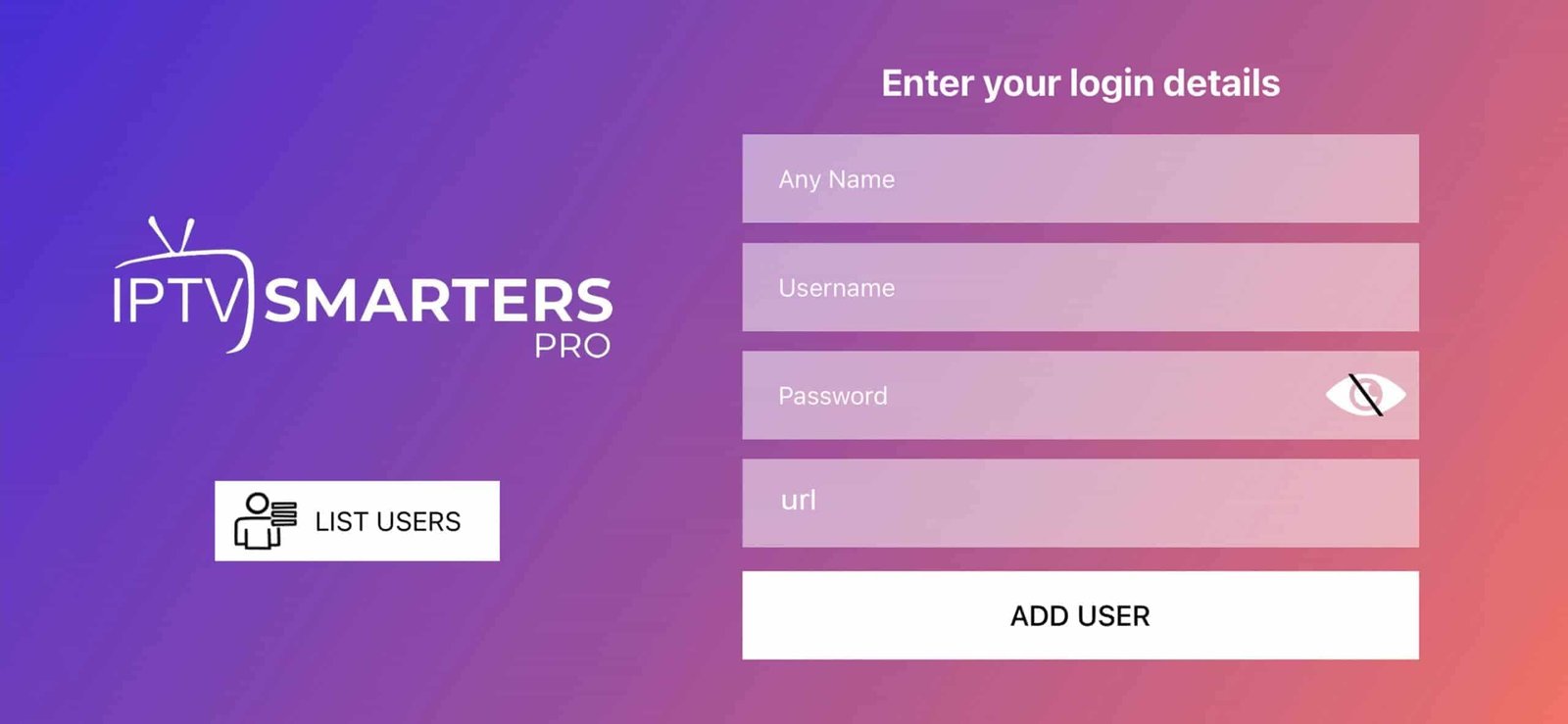
  1. Open app β†’ tap Add User β†’ select “Login with
    Xtream Codes API”

    Add User with Xtream Codes API in Smarters Player
  2. Enter your server URL, username, and password β†’ tap Add
    User
  3. Wait a few seconds for processing, then tap Live TV to
    start watching
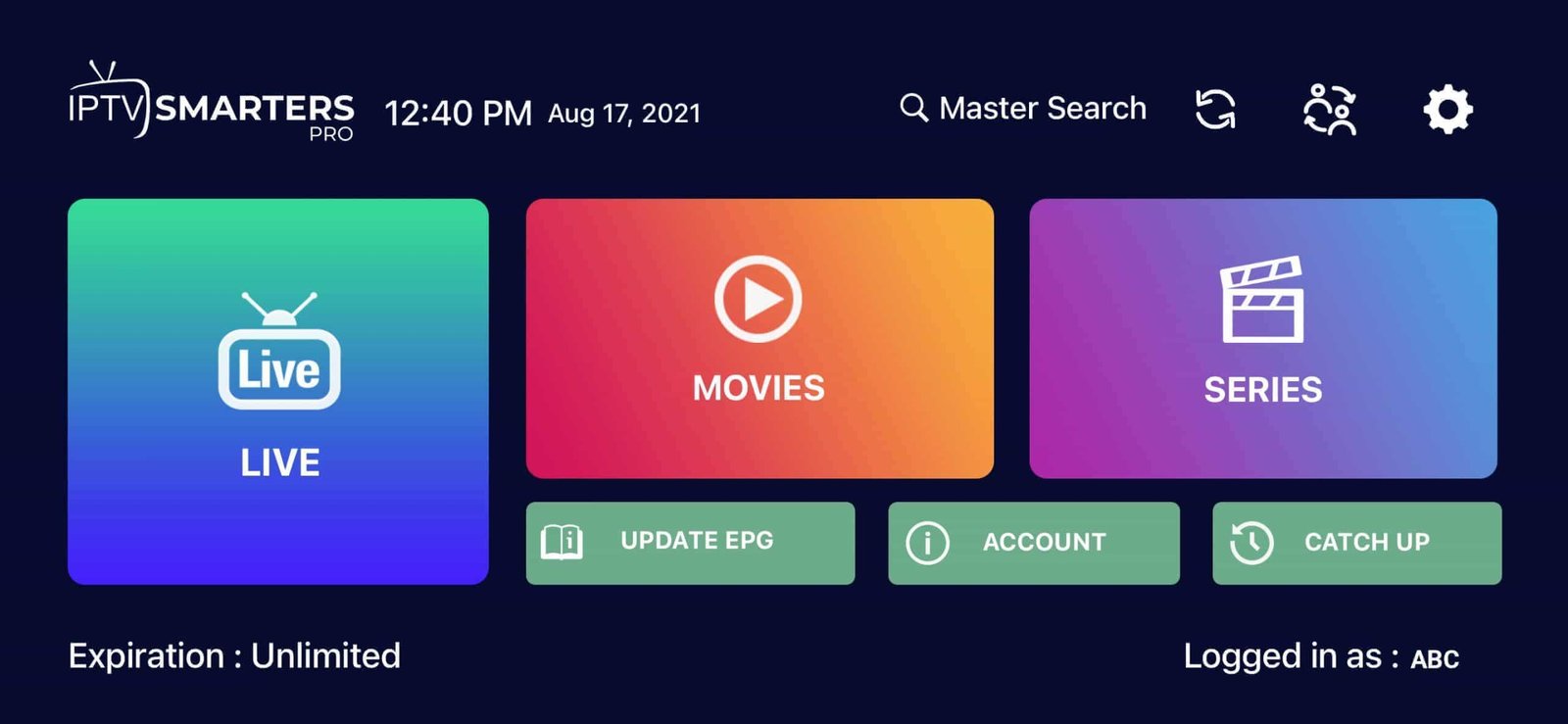
    Smarters Player Live TV view

Tip: Use a stable Wi-Fi connection for the best iOS
streaming experience.

❓ Frequently Asked Questions


iMPlayer is recommended for its simplicity and reliability. Smarters Player Lite
is also excellent for beginners. Both work perfectly with IPTV subscriptions.

Yes! iMPlayer is available on Apple TV. You can also use AirPlay to stream from
your iPhone or iPad to your Apple TV.

Enable “Auto-update EPG” in app settings. Some providers take a few minutes to
load the full program guide.

πŸ’» Windows & Mac Setup Guide

⏱️ 5 minutes
πŸ’» Desktop Apps
βœ… Full HD Support

IPTV Smarters Pro
MyIPTV Player
VLC Player

Method 1 β€” IPTV Smarters Pro

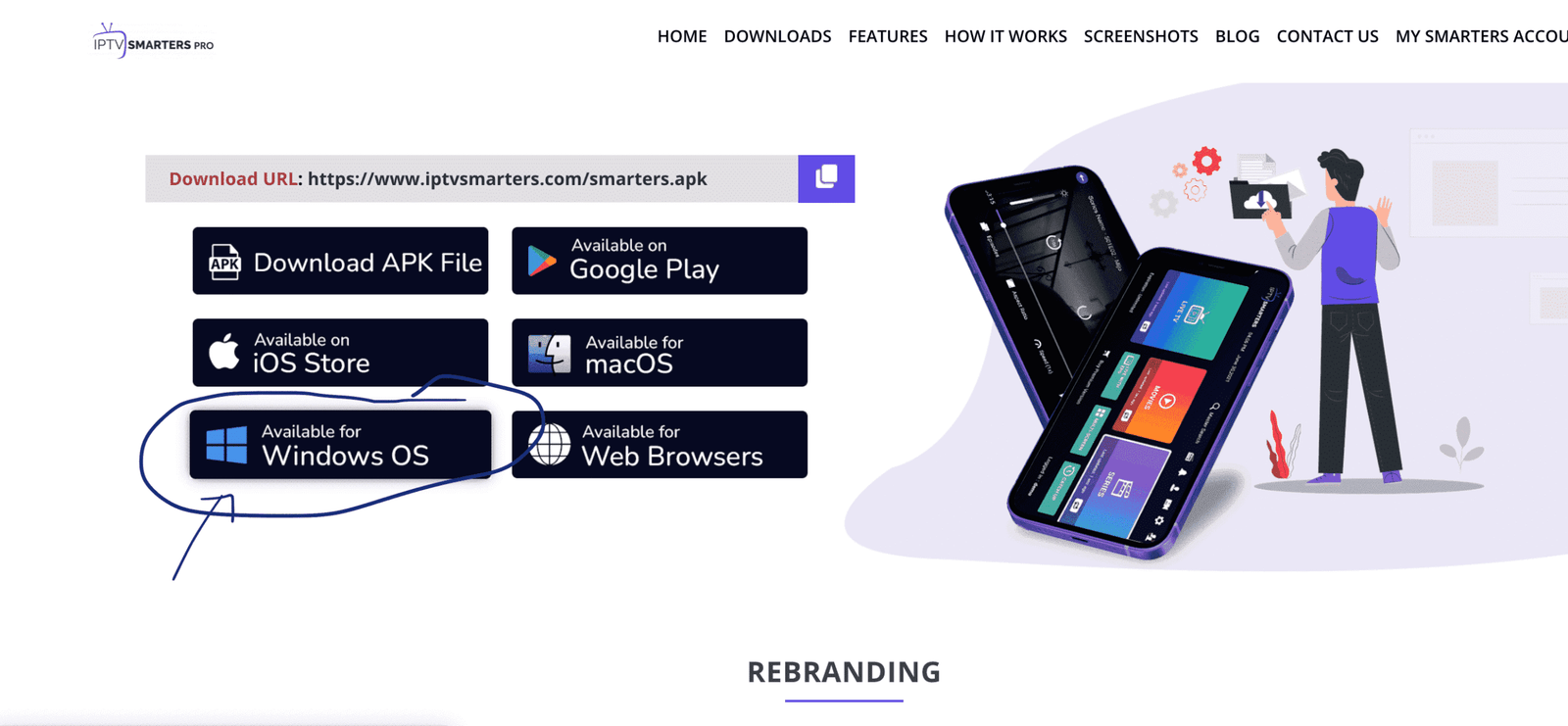
  1. Visit the official website: https://www.iptvsmarters.com
  2. Click the “Downloads” section and download the Windows or
    Mac version
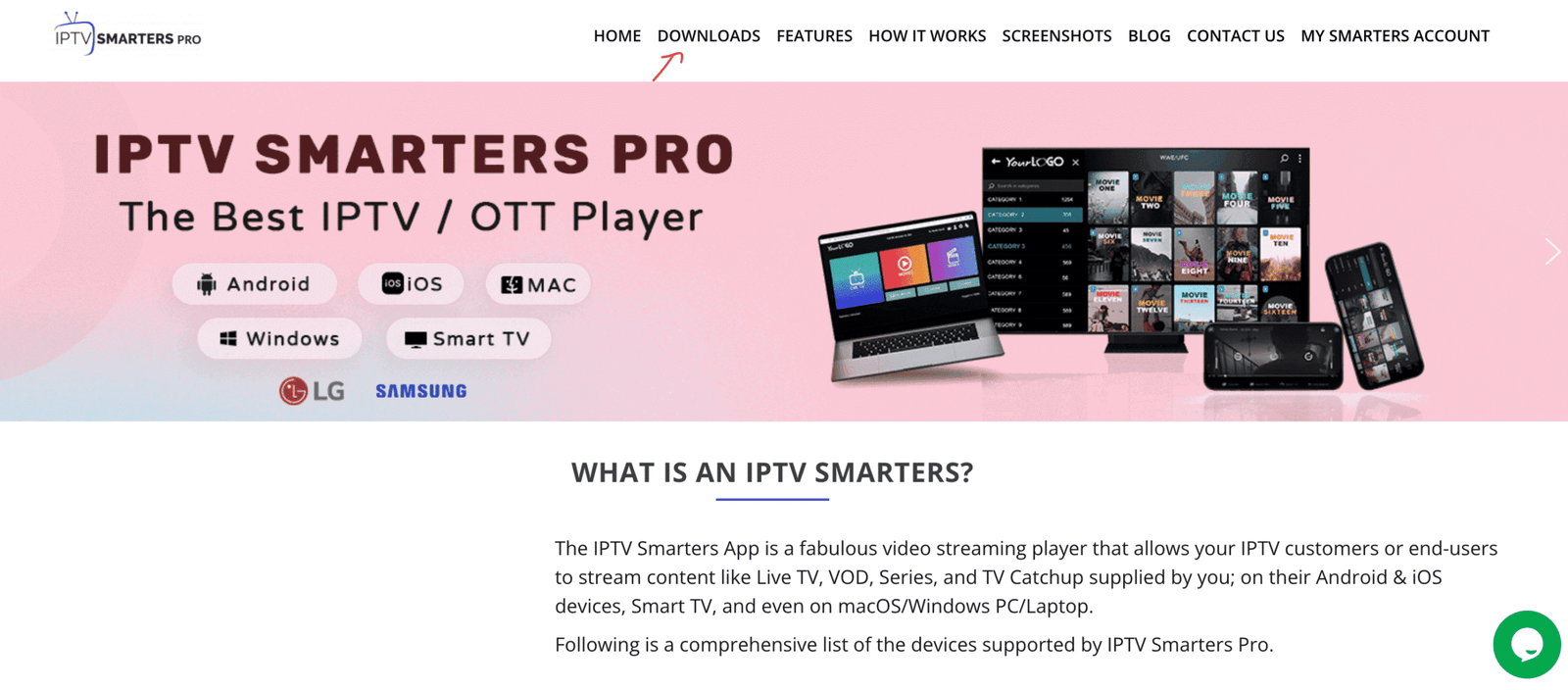
    IPTV Smarters Pro website downloads page
    Download IPTV Smarters Pro for Windows or Mac
  3. Run the installer. If Windows asks for permission, click
    “Yes” to allow
  4. Launch IPTV Smarters β†’ click Add New User β†’ choose
    “Login with Xtream Codes API”
  5. Enter your TVFlexLine credentials: Server URL, Username,
    Password
    β†’ click Add User πŸŽ‰

Method 2 β€” MyIPTV Player (Windows 10/11)

Download from Microsoft Store β†’

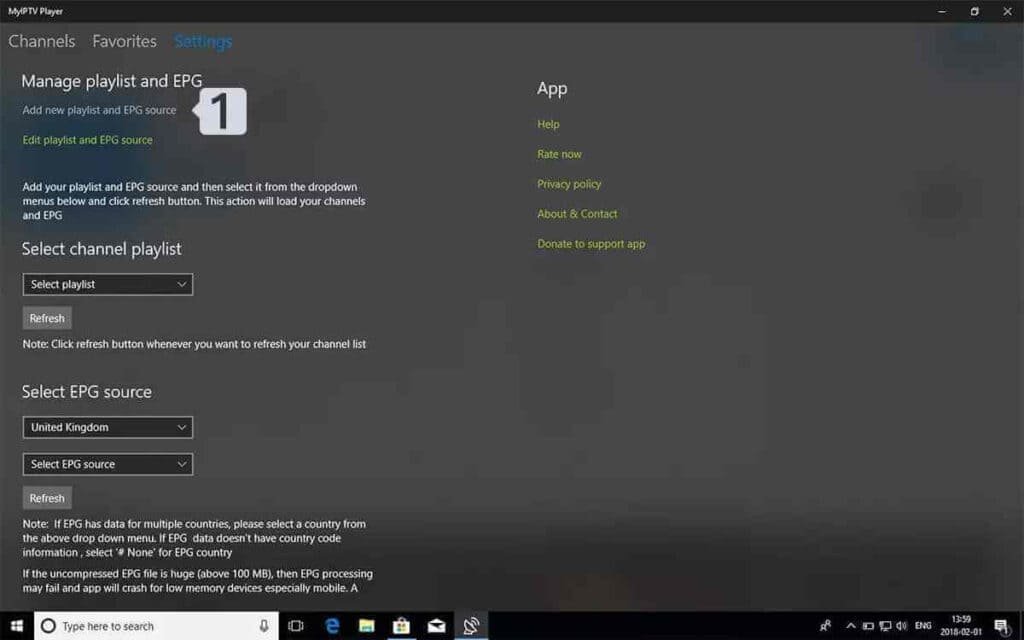
  1. Go to the Settings tab β†’ click “Add new playlist
    and EPG source”

    MyIPTV Player settings page
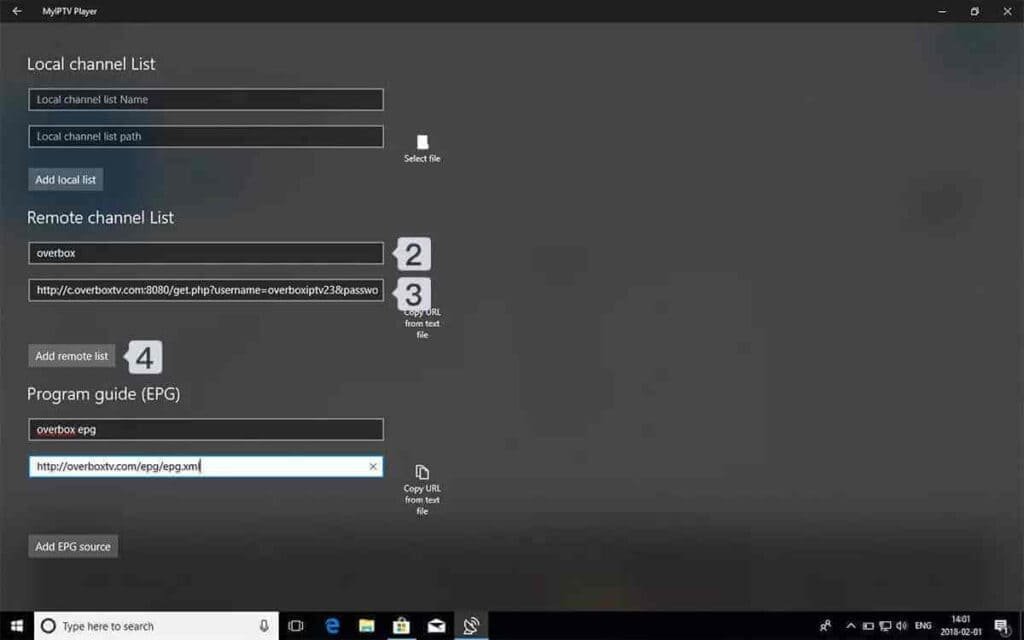
  2. Paste your M3U URL β†’ click Add remote list
    Add M3U playlist to MyIPTV Player
  3. Select your playlist from Select Channel Playlist
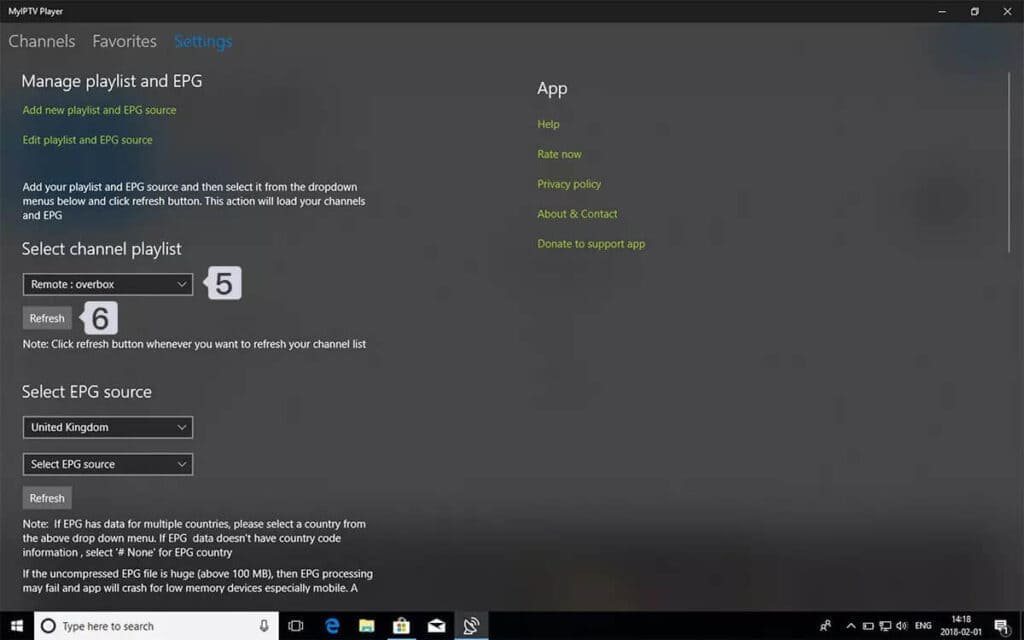
    Select channel playlist in MyIPTV
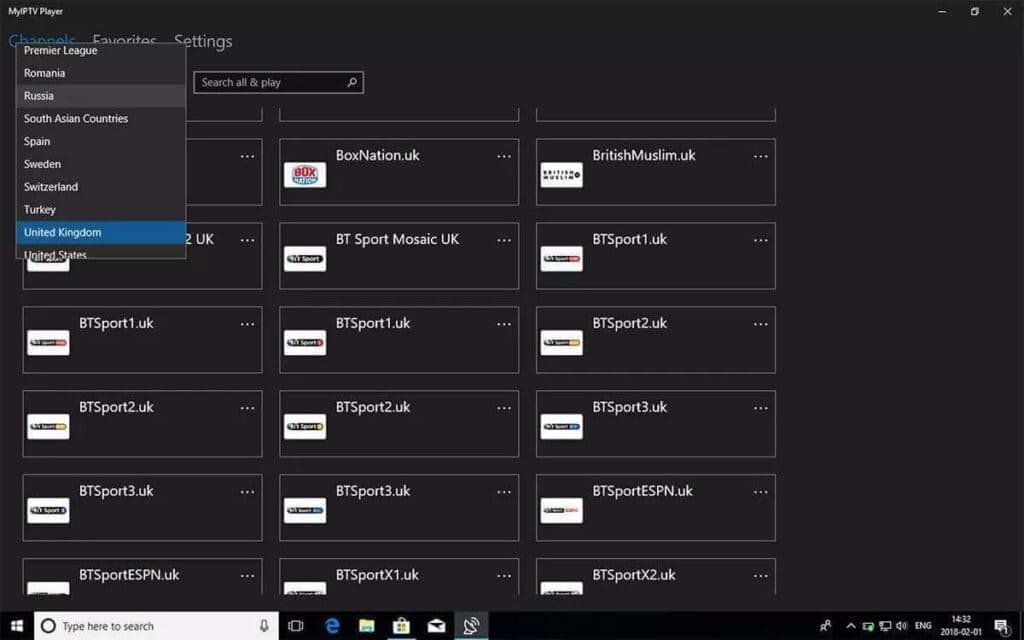
  4. Go to Channels tab and start watching! πŸŽ‰
    MyIPTV Player ready to watch

Tip: Use a wired Ethernet connection for PC/Mac for best
HD and 4K streaming performance.

❓ Frequently Asked Questions


IPTV Smarters Pro offers the most features and runs on both Windows and Mac.
MyIPTV Player is great for Windows 10/11 users who prefer Microsoft Store apps.

Yes β€” VLC can open M3U playlists via Media β†’ Open Network Stream. However,
dedicated IPTV apps provide much better features like EPG and channel organization.

Some apps like IPTV Smarters Pro support recording. Always check your
subscription’s terms of service regarding DVR usage.

πŸ“± Android Phone & Tablet Setup Guide

⏱️ 3 minutes
πŸ“± Play Store
βœ… Mobile Optimized

⚠️

Important Notice

The apps below are third-party apps, NOT owned or managed by
TVFlexLine
. They may require their own license. This guide only helps you configure
them with your subscription.


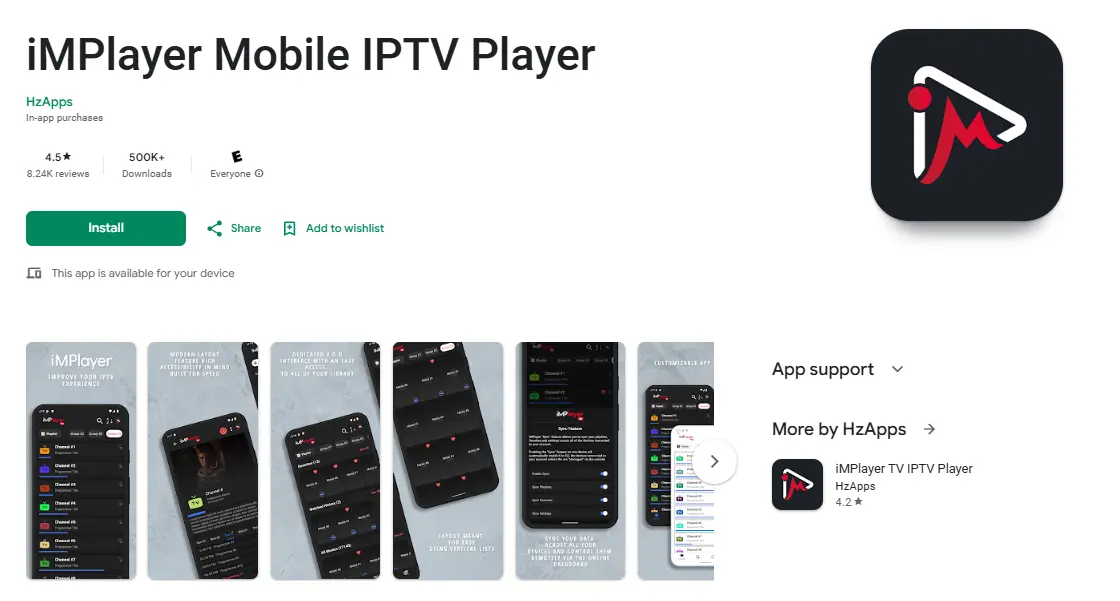
iMPlayer Mobile
TiviMate Mobile
Perfect Player
Requirements: Android 5.0 or higher, stable Wi-Fi or
4G/5G connection.

Method 1 β€” iMPlayer Setup (Recommended)

  1. Download iMPlayer from Google Play: Download iMPlayer β†’
    iMPlayer on Google Play Store
  2. Open app β†’ tap “Add a Playlist” β†’ select “XC
    API”
  3. Enter: Portal URL (server address),
    Username, and Password from your welcome email
  4. Tap “Add Playlist” β€” wait for channels to load and start
    streaming! πŸŽ‰

Method 2 β€” TiviMate Mobile

  1. Install TiviMate IPTV Player from Google Play Store
    Note: VOD on TiviMate
    requires their Premium license. Our subscription has VOD built in.
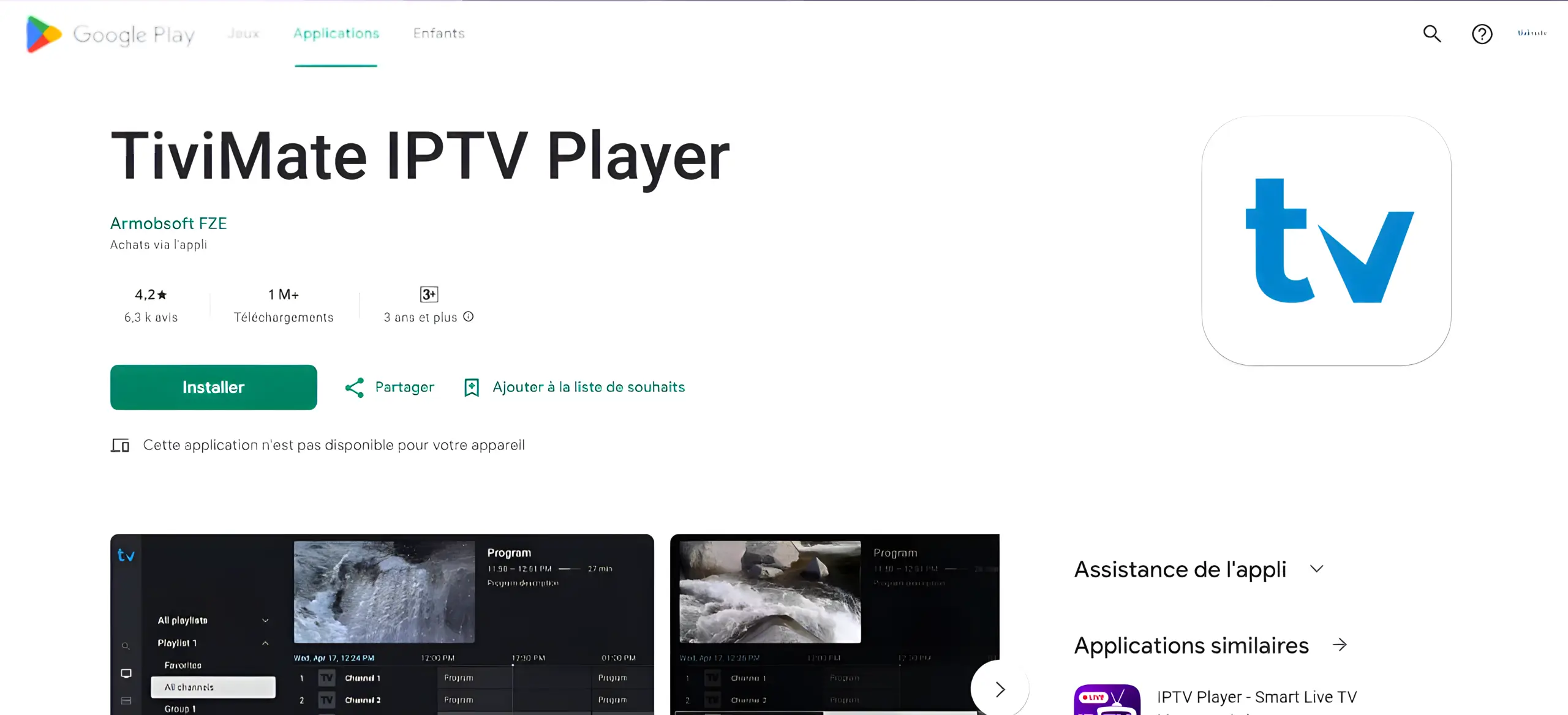
    TiviMate IPTV Player on Google Play Store
  2. Open TiviMate β†’ tap Add Playlist β†’ select Xtream
    Codes
  3. Enter your server URL, username, and password β†’ tap Next
  4. Wait for channels to load, then start watching!

Data tip: Streaming uses ~1 GB/hr at SD, ~3 GB/hr at HD.
Use Wi-Fi when possible.

❓ Frequently Asked Questions


No β€” TiviMate is just a player. You need an active TVFlexLine subscription and
your playlist credentials.

Double-check the host URL, username, and password. Ensure there are no extra
spaces and the URL starts with http:// or https://.

Yes β€” most IPTV apps support Chromecast. Look for the cast icon in the player,
or use screen mirroring on compatible TVs.

πŸ“‘ BuzzTV Box Setup Guide

⏱️ 5–8 minutes
πŸ“Ÿ XC API Login
βœ… Xtream Codes

XC API Login (Recommended)
Compatible models: BuzzTV XPL 3000, XRS 4000, XRS 4500, E2000, and all BuzzTV Android
boxes.

Method 1 β€” XC API Login (Recommended)

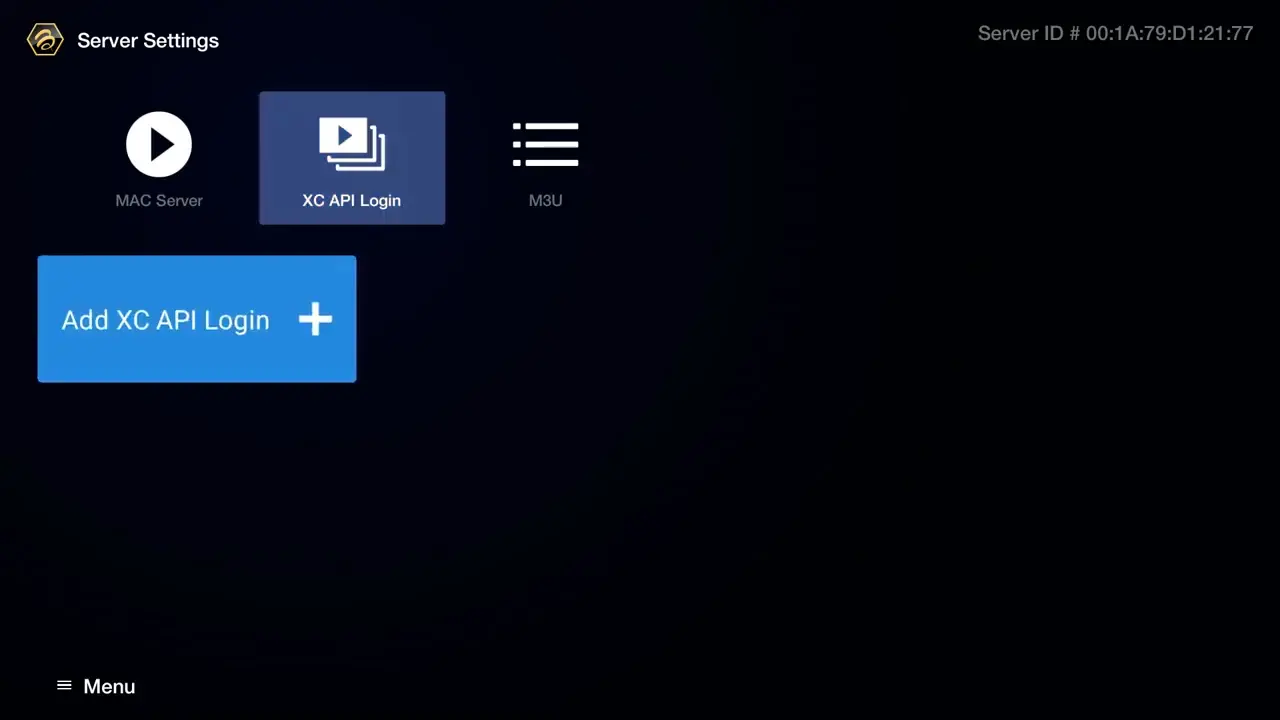
  1. From the BuzzTV home screen, navigate to Server Settings
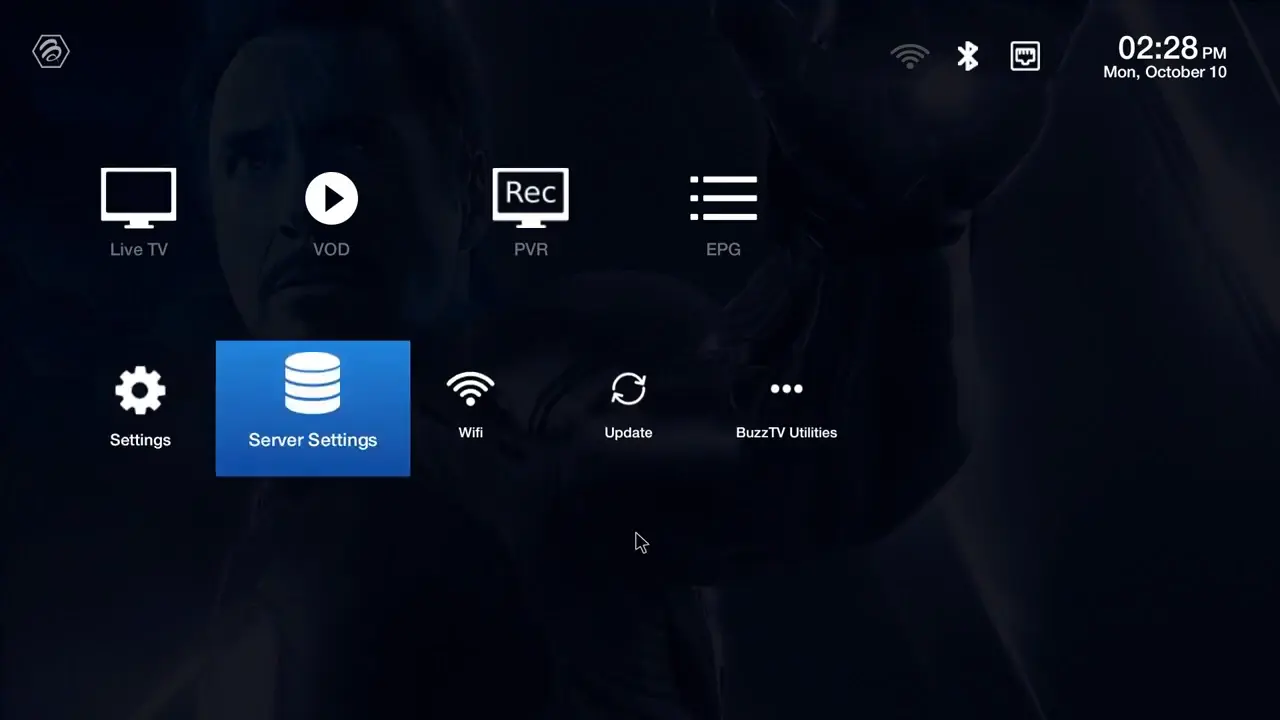
    BuzzTV Server Settings screen
  2. Select XC API Login β†’ Add XC API Login
    Select XC API Login on BuzzTV
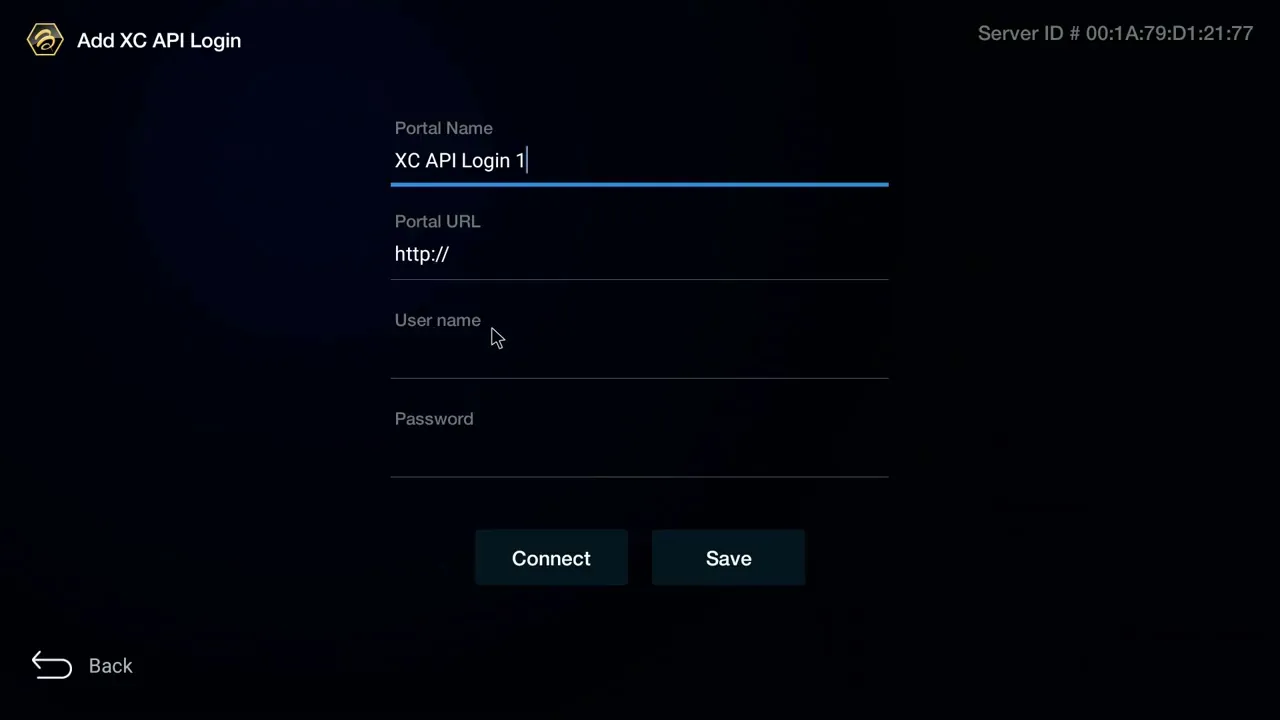
  3. Configure your connection:
    β€’ Portal Name: Any name (e.g. “TVFlexLine”)
    β€’ Portal URL: Your server URL
    β€’ Username: Your IPTV username
    β€’ Password: Your IPTV password
    Configure BuzzTV XC API Login credentials
  4. Press Connect or Save to establish the
    connection
  5. Return to the home screen β†’ select Live TV and start
    watching! πŸŽ‰

❓ Frequently Asked Questions


Use XC API Login if your provider gave you a username and password (recommended).
Use MAC Server only if your provider specifically requires MAC address authentication.

Verify credentials are correct, ensure a stable internet connection, confirm
you’re using the right login method (XC API vs MAC), and try restarting the BuzzTV app.

Yes β€” configure multiple connections in Server Settings and switch between them
easily from the home screen.


πŸ“¦

MAG Box Not Supported

We no longer support MAG Box devices. Please choose one of our fully supported devices for the best IPTV
streaming experience.