

💻 Windows / Mac — IPTV Setup Guide
Follow our step-by-step installation guide to get your TVFlexLine IPTV subscription running in minutes.
💻 Windows & Mac Setup Guide
IPTV Smarters Pro
MyIPTV Player
VLC Player
Method 1 — IPTV Smarters Pro
-
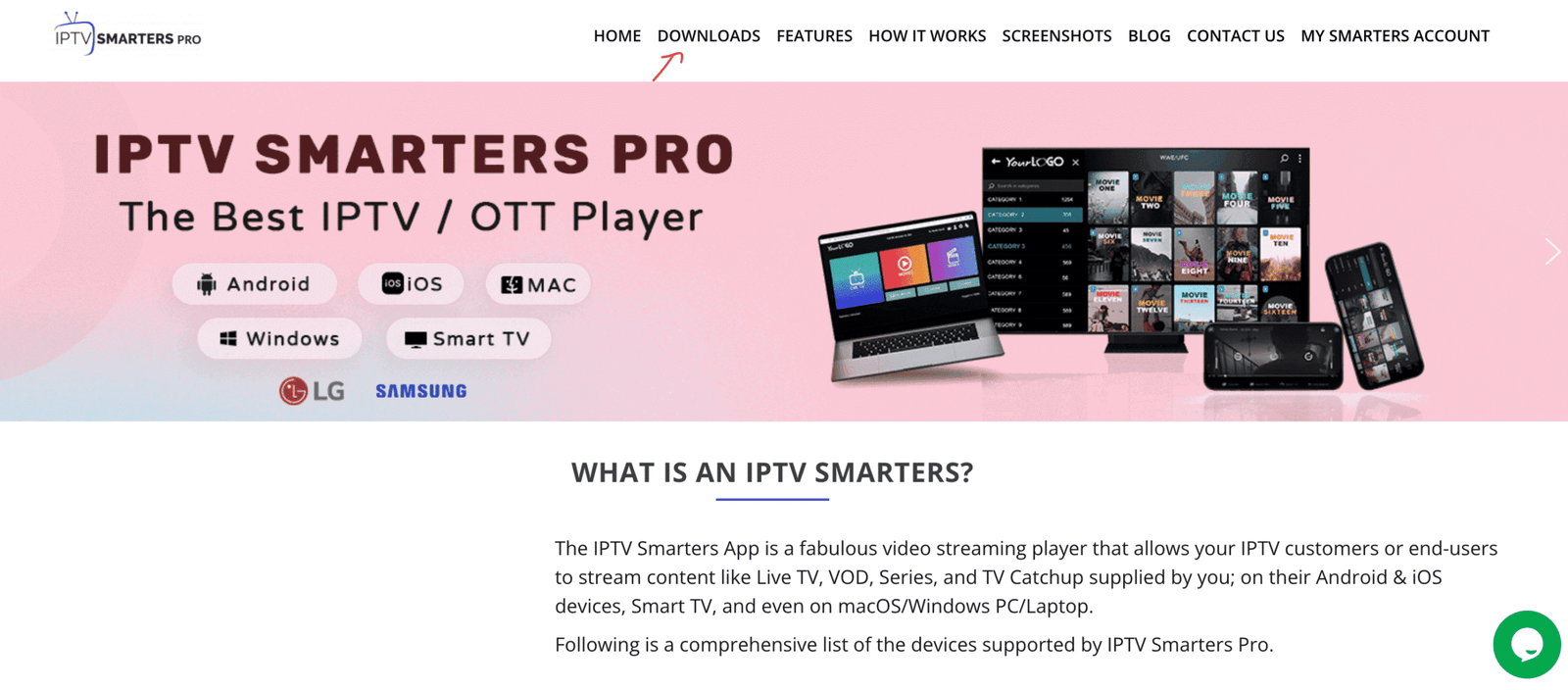
Visit the official website: https://www.iptvsmarters.com
-
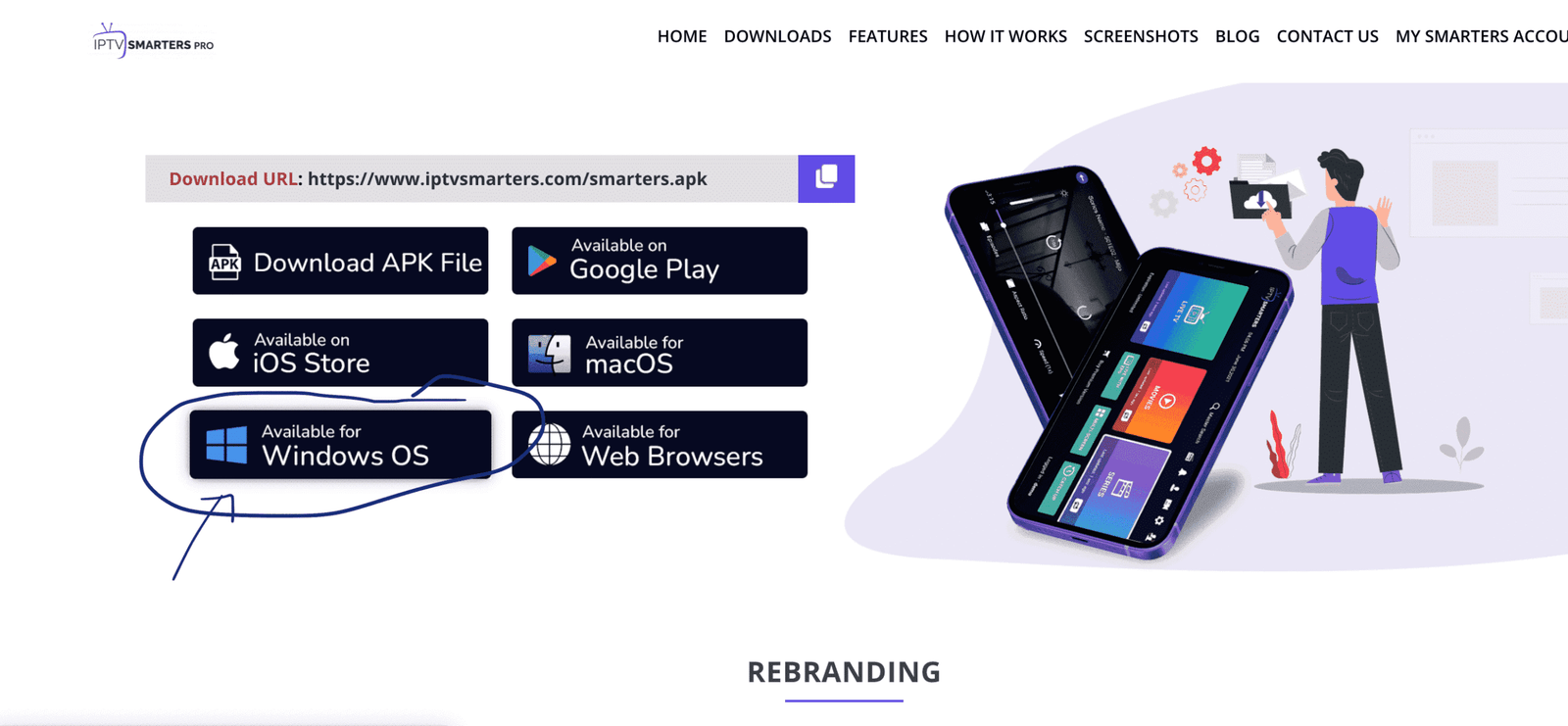
Click the “Downloads” section and download the Windows or Mac version
-
Run the installer. If Windows asks for permission, click “Yes” to allow
-
Launch IPTV Smarters → click Add New User → choose “Login with Xtream Codes API”
-
Enter your TVFlexLine credentials: Server URL, Username, Password → click Add User 🎉
Method 2 — MyIPTV Player (Windows 10/11)
Download from Microsoft Store →
-
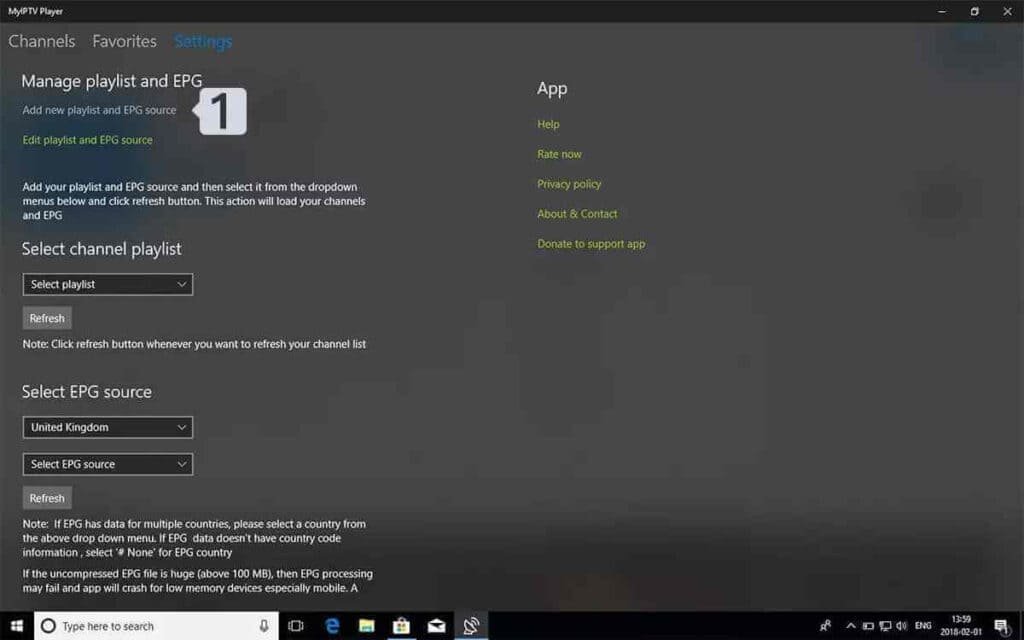
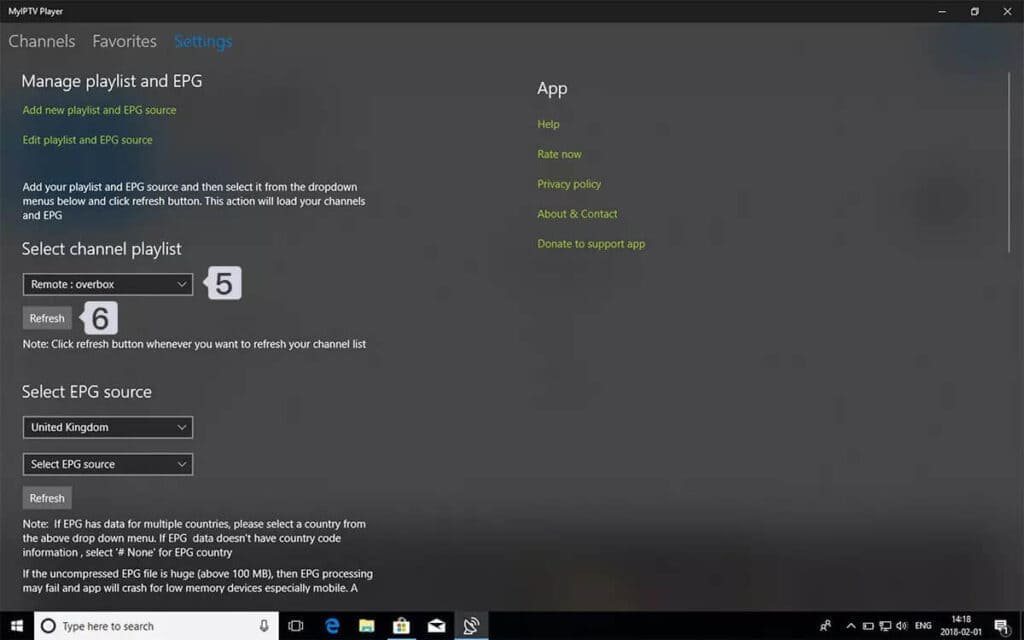
Go to the Settings tab → click “Add new playlist and EPG source”
-
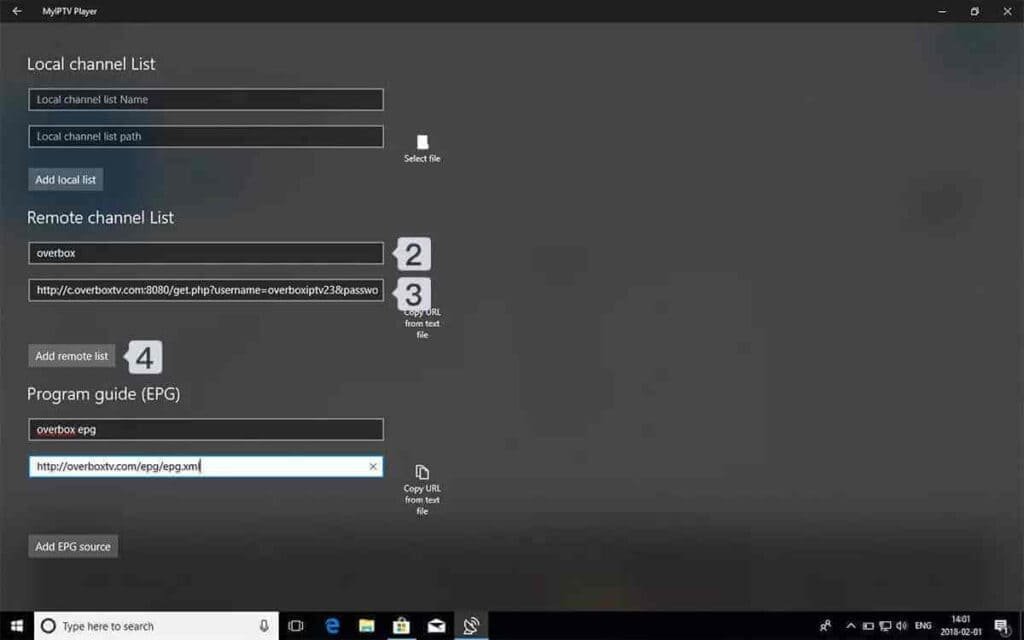
Paste your M3U URL → click Add remote list
-
Select your playlist from Select Channel Playlist
-
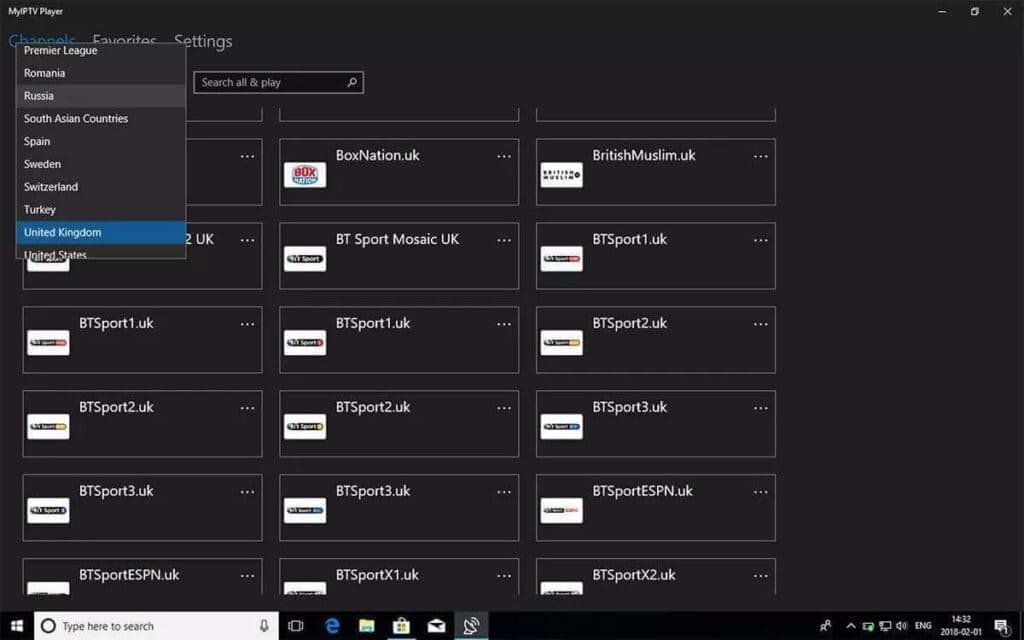
Go to Channels tab and start watching! 🎉
Tip: Use a wired Ethernet connection for PC/Mac for best
HD and 4K streaming performance.
❓ Frequently Asked Questions
IPTV Smarters Pro offers the most features and runs on both Windows and Mac.
MyIPTV Player is great for Windows 10/11 users who prefer Microsoft Store apps.
Yes — VLC can open M3U playlists via Media → Open Network Stream. However,
dedicated IPTV apps provide much better features like EPG and channel organization.
Some apps like IPTV Smarters Pro support recording. Always check your
subscription’s terms of service regarding DVR usage.